
How to Edit Videos with AI in 2026 (Free, Step by Step)
A working method, not a tool list: use free AI features to cut dead air, caption speech, clean audio, and reshape footage for YouTube or Shorts — with verified free limits for Clipchamp, CapCut, and Descript.

- 1AI reliably handles the mechanical side of editing in 2026 — auto captions, filler-word removal, audio cleanup, background removal, and clip extraction — while story decisions stay yours.
- 2Three free-to-start tools cover the whole beginner pipeline: Clipchamp (watermark-free 1080p, AI captions and voiceovers), Descript ($0 text-based editing for talking-head footage), and CapCut (phone-first editing with a broad listed feature set).
- 3Five step-by-step workflows turn raw footage into publishable video: tighten the talking, caption everything, cut Shorts from long videos, fix or replace audio, and polish frames without over-processing.
Most "AI video editing" articles are really tool lists wearing a disguise. This one is the opposite: a working method. You will take real footage — a talking-head clip, a screen recording, a phone video — and use free and freemium AI tools to cut the dead air, caption it, clean the audio, and reshape it for YouTube or Shorts, step by step. If what you actually want is to generate video from a text prompt rather than edit footage you already have, that is a different job with different tools — our AI video generators guide covers it. This guide is for the far more common situation: the footage exists, and it is longer than it needs to be, slightly noisy, and uncaptioned.
Research note: every product fact below was checked against official pages — Clipchamp's pricing page, Descript's pricing page, and CapCut's official site — on September 21, 2026. Free tiers and watermark policies change with little notice; where a limit is version-dependent, this guide says "check the export screen" instead of pretending the answer is permanent. Nothing here is a paid placement.
What AI Video Editing Can Actually Do in 2026
The honest starting point is knowing which jobs AI genuinely does well, because the marketing implies it does everything. As of September 2026, the reliably useful features in free and low-cost editors are:
- Auto captions and subtitles. Speech recognition transcribes your audio and lays timed captions on the video. This is the single highest-value AI feature for creators — Clipchamp includes it on its free plan, and CapCut lists it prominently (plan availability varies; more on that below).
- Filler-word and dead-air removal. Descript's editor treats your video as a transcript — delete the sentence, and the video cut happens automatically. Its Remove Filler Words tool strips the "um"s and "uh"s in bulk (listed from the Hobbyist plan).
- Text-based editing. The same idea, generalized: edit the document, not the timeline. For interview and talking-head footage, this is dramatically faster than scrubbing.
- Audio cleanup. Noise reduction and voice enhancement (CapCut's reduce-noise and enhance-voice tools, Descript's Studio Sound) rescue footage recorded in echoey rooms.
- Background removal and reframing. CapCut lists video background removal without a green screen, and editors like Clipchamp include resize tools for converting between 16:9, 9:16, and 1:1 — though converting always crops something.
- AI voiceovers. Text-to-speech has reached the point where a scripted voiceover is a paste-and-generate job — Clipchamp ships an AI voiceover generator on the free plan.
What AI still does not do well: story structure. No current tool reliably decides which of your 40 minutes deserves to exist. The workflows below assume you make that call and let AI handle the mechanical 80% that follows. The same division of labor applies to still images — our AI photo editing guide follows the identical philosophy if you also shoot photos.
The Free AI Editing Toolkit (2026)
You need at most three tools, and all three can be started without paying — though only two publish their free limits clearly. Here is what each is for, verified on September 21, 2026:
| Tool | Free tier (verified) | Best at | Watch out for |
|---|---|---|---|
| Clipchamp (web/Windows) | Watermark-free exports up to 1080p; AI video and audio tools included; screen, camera, and voice recorder | Captions, voiceovers, straightforward timeline edits | Free stock only — a project containing premium assets will not export on the free plan |
| CapCut (web/desktop/mobile) | Free to start online, no credit card; lists auto captions, noise reduction, background removal, enhance quality — which features your plan includes is not clearly published | Phone-first editing, Shorts/TikTok-style output, effects | Pricing page is opaque; check the export screen before relying on any feature |
| Descript (desktop/web) | $0 plan: record, edit, and mix with text-based editing; no credit card required | Talking-head and podcast footage, filler-word removal, clips | Watermark-free 1080p export starts at Hobbyist ($16/month per person on annual billing; 10 media hours, 400 AI credits) |
Clipchamp is the safest first stop because Microsoft publishes its free limits plainly: 1080p exports with no watermark, AI subtitle and voiceover generators included, and a built-in screen recorder that makes it a complete tutorial-video pipeline. Premium (4K, premium stock, brand kit) comes bundled with Microsoft 365 Personal or Family rather than a separate subscription — relevant only if you already pay for Office.
CapCut lists the broadest feature set on its official site — auto captions, caption templates, speech-to-text, text-to-speech with custom voices, video background removal, and quality enhancement — and it is the phone-first option in this group, with separate desktop, online, and mobile products. Its weakness is transparency: the pricing page was not even reachable when we checked, so treat any specific free-limit claim you read elsewhere as unverified and confirm what the export screen offers on the day you use it.
Descript is the specialist. If your footage is a person talking — course lessons, YouTube explainers, podcast video — its transcript-first editor is the fastest method in this group, because deleting words is quicker than scrubbing a timeline. The free plan lets you learn the text-based workflow; its export terms are not spelled out on the pricing page, so check them before deciding whether Hobbyist is necessary. The AI credits system (400/month on Hobbyist) meters features like Studio Sound and Create Clips, so bulk AI cleanup has a budget.
If your videos are mostly designed content — slides, promos, social graphics with motion — you may not need a dedicated editor at all: Canva's AI features handle simple video assembly inside the design tool you already use, and our Canva vs Adobe Express comparison covers that territory.
Editing on Your Phone
"How to edit videos with AI on iPhone" is one of the most-searched versions of this question, and the practical answer is the tool searchers already pair with it: CapCut's mobile app, which carries the same categories of AI tools its site lists — captions, background removal, audio cleanup — reorganized for a touchscreen (verify exact availability in the app, since features differ across its desktop, online, and mobile products).
Two phone-specific habits make an outsized difference. First, shoot in the orientation you will publish: vertical for Shorts, Reels, and TikTok; horizontal for YouTube proper. Reframing tools can convert between them, but converting crops — a two-person shot framed for 16:9 loses someone in 9:16. Second, do the heavy AI passes on Wi-Fi: many mobile editors process AI features online rather than on the device, and long high-resolution clips are large uploads.
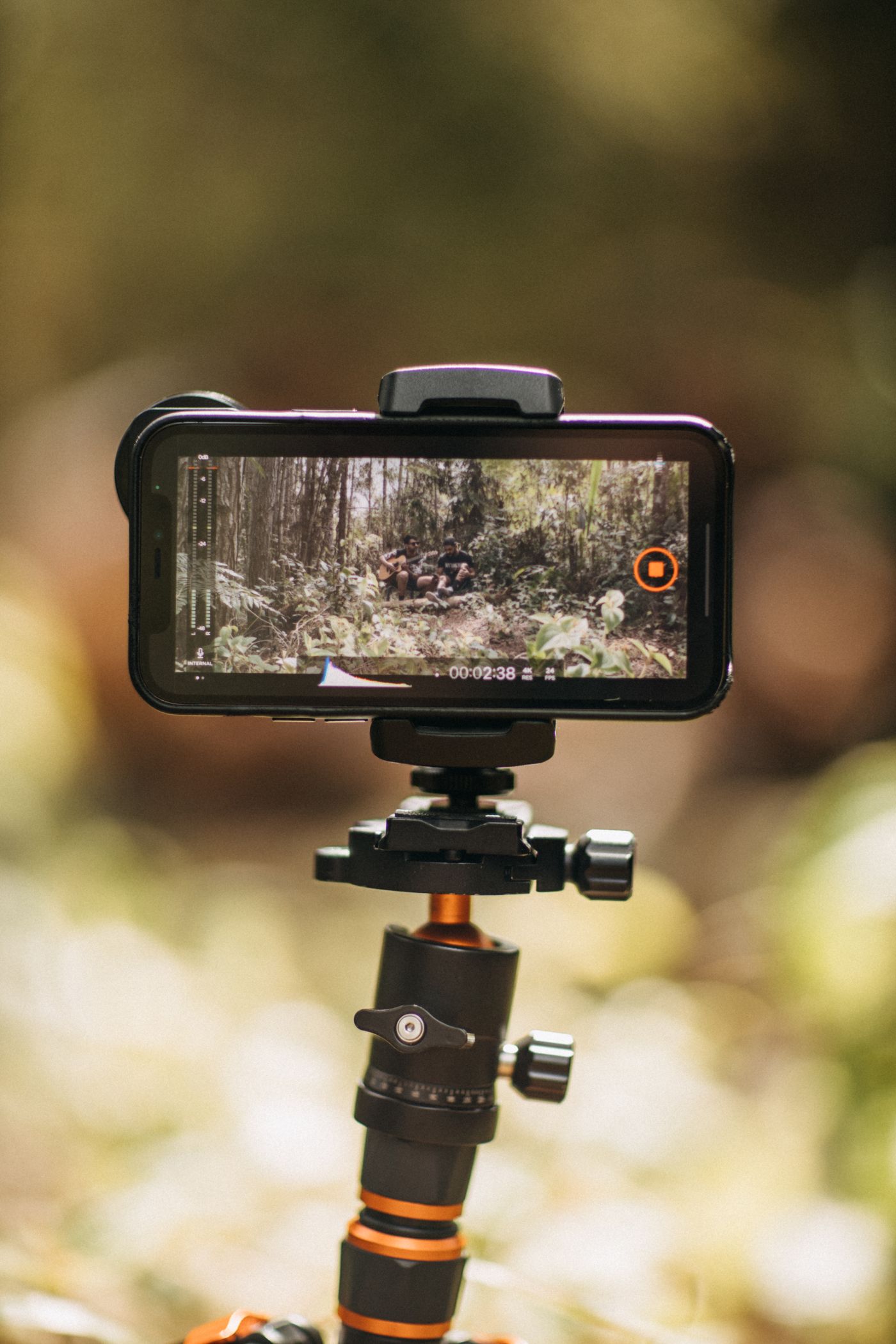
The phone's built-in editor (Photos on iPhone, the Gallery editor on Samsung and Pixel) remains the right tool for one job: trimming the ends off a clip before it goes anywhere. It is instant and lossless-adjacent. Everything beyond a trim is faster in a real editor.
The Five Core Workflows, Step by Step
1. Clean up a talking-head video (Descript)
This is the workflow that converts people to AI editing. Create a project in Descript, drop in your video, and wait for the automatic transcript. Now edit the text: delete a rambling sentence, and the corresponding video vanishes. Run Remove Filler Words to list every "um," "uh," and "you know" — review the list rather than accepting blindly, because occasionally a filler carries timing you want — and apply. How much a raw take tightens depends entirely on the footage, but removing filler and repetition this way takes a fraction of the time that scrubbing a timeline does. Finish with Studio Sound if the room echo bothers you, keeping in mind AI features draw from your monthly credits on paid plans.
2. Caption everything (Clipchamp)
Upload your video, open the captions tool, and let the AI subtitle generator transcribe it. Then do the pass that separates professional captions from lazy ones: read every line against the audio. Names, technical terms, and non-English words are where speech recognition still fails, and one wrong product name in a caption reads worse than no captions. Style them large and high-contrast, and keep them clear of the platform's lower interface area — preview on the target platform, because Shorts and Reels overlay buttons and caption bars near the bottom of the frame. If you need a standalone transcript for a description or blog post, the dedicated services in our AI transcription tools guide export text formats video editors do not.
3. Cut one long video into Shorts
The highest-leverage workflow for YouTube creators: one longer video becomes several Shorts, depending on how many complete moments it contains. Descript's Create Clips suggests candidate moments from the transcript; CapCut's caption templates handle the vertical styling, with manual reframing where the automatic crop misses. The AI's suggestions are drafts — it finds quotable moments, not necessarily complete ones, so check that each clip stands alone without the surrounding context. Reframe to 9:16, regenerate captions (do not scale down the 16:9 ones), and front-load the hook: the opening seconds heavily influence whether viewers stay. Our YouTube channel guide covers where Shorts fit in a channel strategy.
4. Fix the audio, or replace it
Viewers forgive soft video and abandon bad audio. Run noise reduction (CapCut lists reduce noise; Descript offers Studio Sound) on anything recorded outside a treated room — once, not twice, because stacked passes tend to produce a processed, warbly sound. If the take is beyond saving, replace it: write a script from the transcript and generate an AI voiceover. Clipchamp's voiceover generator is included free, and you can prototype voices instantly with our free text-to-speech tool before committing to one. Keep any music bed clearly below the voice — AI voices come out unnaturally consistent in volume, so set the music low and check the mix on both headphones and a phone speaker.
5. Background removal, enhancement, and B-roll
CapCut lists a background remover that isolates a subject without a green screen — with tools of this kind, complex edges, fast motion, and overlapping subjects are the typical trouble spots, so shoot against an even wall for best results. Its enhance-quality tool is meant to improve soft footage; enhancement tools generally reconstruct detail rather than recover it, so inspect the result closely — fine for a B-roll shot, riskier on a product close-up where accuracy matters. Speaking of B-roll: AI-generated cutaway shots from the text-to-video tools can work for abstract filler (cityscapes, hands typing) if you review each clip, which is the workflow behind the faceless channel model — generated visuals, AI voiceover, human script.
Making It Work for YouTube
Editing is half the upload. The parts AI helps with after the cut: titles and thumbnails A/B thinking (the creator tools roundup covers the full stack), thumbnail images — either edited from a frame with the apps in our AI photo editors list or generated outright with Midjourney — and metadata, where our free YouTube tag generator drafts the tag list from your title.
One editing decision matters more for YouTube than any tool choice: cut for retention, not for completeness. The AI shows you what was said; the audience graph shows you what was watched. When in doubt, the shorter cut wins.
Where to Stop: Watermarks, Quality, and Honesty
Three traps catch beginners. The premium-asset trap: Clipchamp's free plan will not export a project containing premium stock — and the editor happily lets you build one. Filter stock to free-only before you start, not at export. The watermark surprise: policies differ by tool and change over time; the only reliable check is the export screen of your actual account today. Descript, for instance, states watermark-free 1080p at Hobbyist and does not spell out the free plan's export terms on its pricing page. The over-processing trap: enhancement, smoothing, and noise reduction all have a setting past which footage looks synthetic. If you notice the effect, viewers notice it more.
And a disclosure note: platforms increasingly require flagging synthetic media. A cleaned-up recording of a real person needs no label; an AI voiceover reading a script, or generated B-roll presented as real footage, may — check the current policy of the platform you publish on rather than guessing.
Frequently Asked Questions
Can I edit videos with AI completely free?
Yes, within limits. Clipchamp's free plan exports 1080p without a watermark and includes its AI caption and voiceover tools; Descript's $0 plan includes text-based editing; CapCut is free to start online with no credit card. Across these tools, the costs appear at the edges — premium assets, higher export resolutions, and heavy AI usage tend to sit behind paid plans, so check each product's current plan details.
Which free AI video editor has no watermark?
Clipchamp is the one that states it plainly: watermark-free exports up to 1080p on the free plan (verified September 21, 2026). For any other tool, trust the export screen of your own account over any article — including this one — because watermark policies change without announcements.
How do I edit videos with AI on CapCut?
Upload your clip on the web editor or mobile app, then work through the AI tools: auto captions for subtitles, reduce noise and enhance voice for audio, remove background if you need the green-screen effect, and caption templates for styled text. Export and check the output — CapCut's plan limits are not clearly published, so the export screen is your source of truth.
Can I do this on my iPhone?
Yes — CapCut's mobile app is the tool searchers most often pair with this question, and it offers the caption, audio, and background tools from CapCut's lineup on a touchscreen (exact availability varies between its mobile, online, and desktop products). Shoot vertical for Shorts and Reels, run caption generation on Wi-Fi, and keep the built-in Photos editor for quick trims only.
Is AI video editing good enough for a real YouTube channel?
For the mechanical work — captions, filler removal, audio cleanup, clip extraction — yes, and these features are widely used by working creators. What AI cannot do is decide what deserves to be in the video. Channels that treat AI as the editor's hands rather than the editor's brain get the benefit without the generic feel.
What about editing video by text prompt?
Chat-driven editing exists — CapCut lists Video Studio, which builds a video from a conversation with its AI. Treat the output as a starting draft and review every cut. For footage you care about, the transcript-based editing in Descript is the practical, controllable version of "editing with words."
Bottom Line
Editing videos with AI in 2026 is not one skill; it is five small workflows — tighten the talking, caption the speech, clip the highlights, clean the audio, and polish the frame — each of which AI has turned from slow timeline work into a review job. Start with Clipchamp because its free limits are published plainly, add Descript the moment your content is people talking, and keep CapCut on your phone for vertical work. Spend the time you save on the two things AI cannot touch — what you say, and what you cut.
Sources and Image Credits
Product facts were verified on September 21, 2026 against Clipchamp's pricing page, Descript's pricing page, and CapCut's official site. Free tiers, watermark policies, and prices change; recheck before relying on any limit.
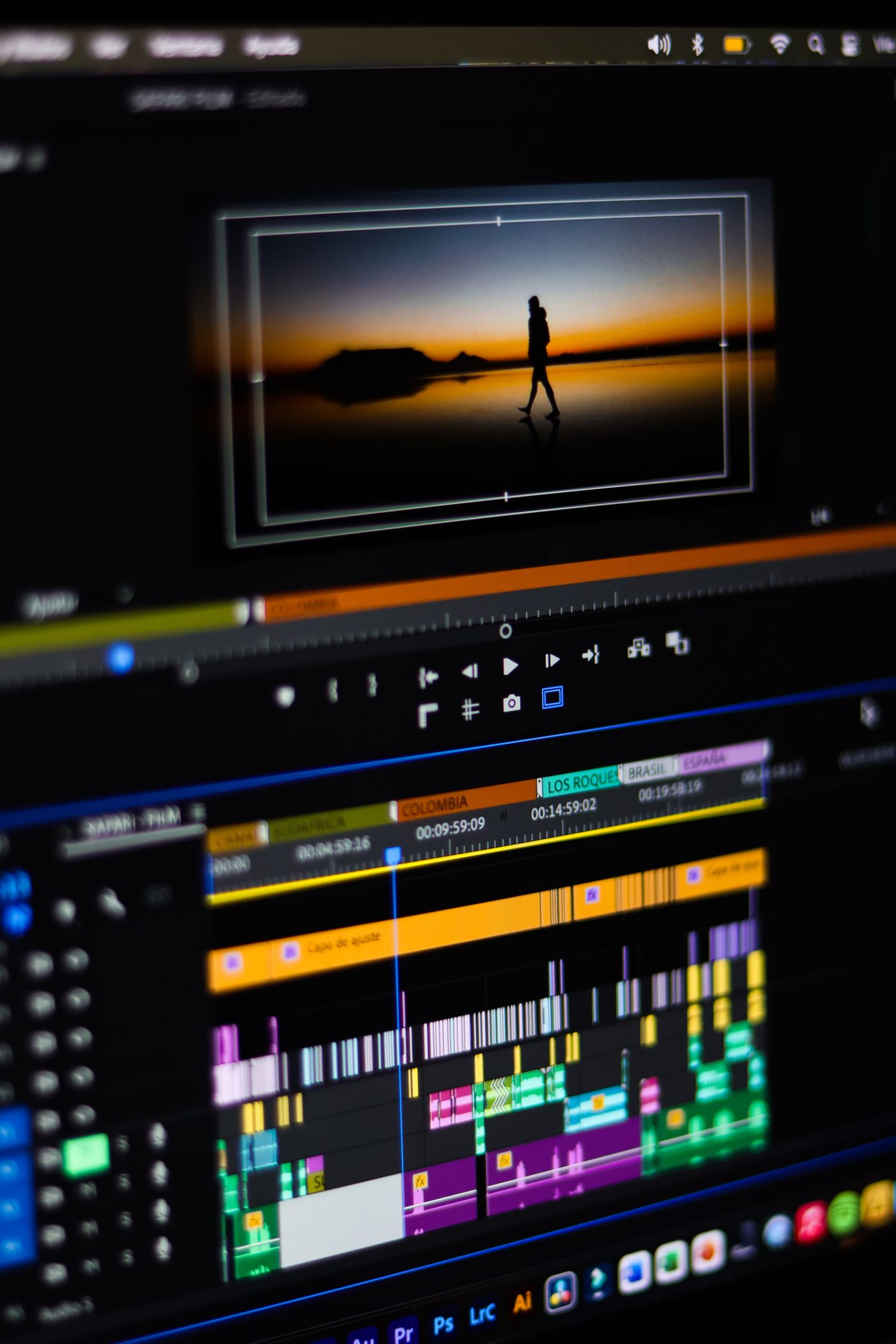
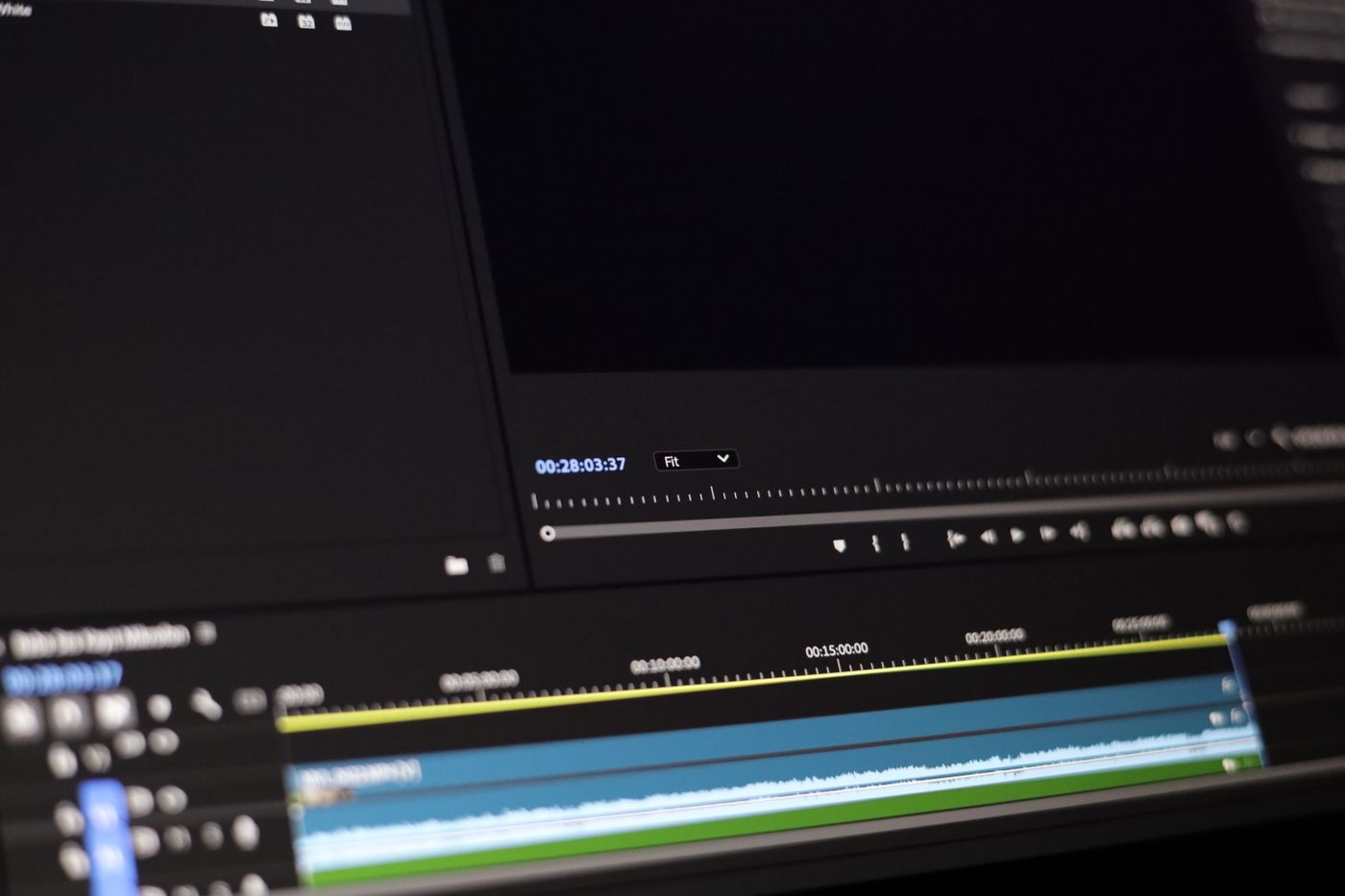
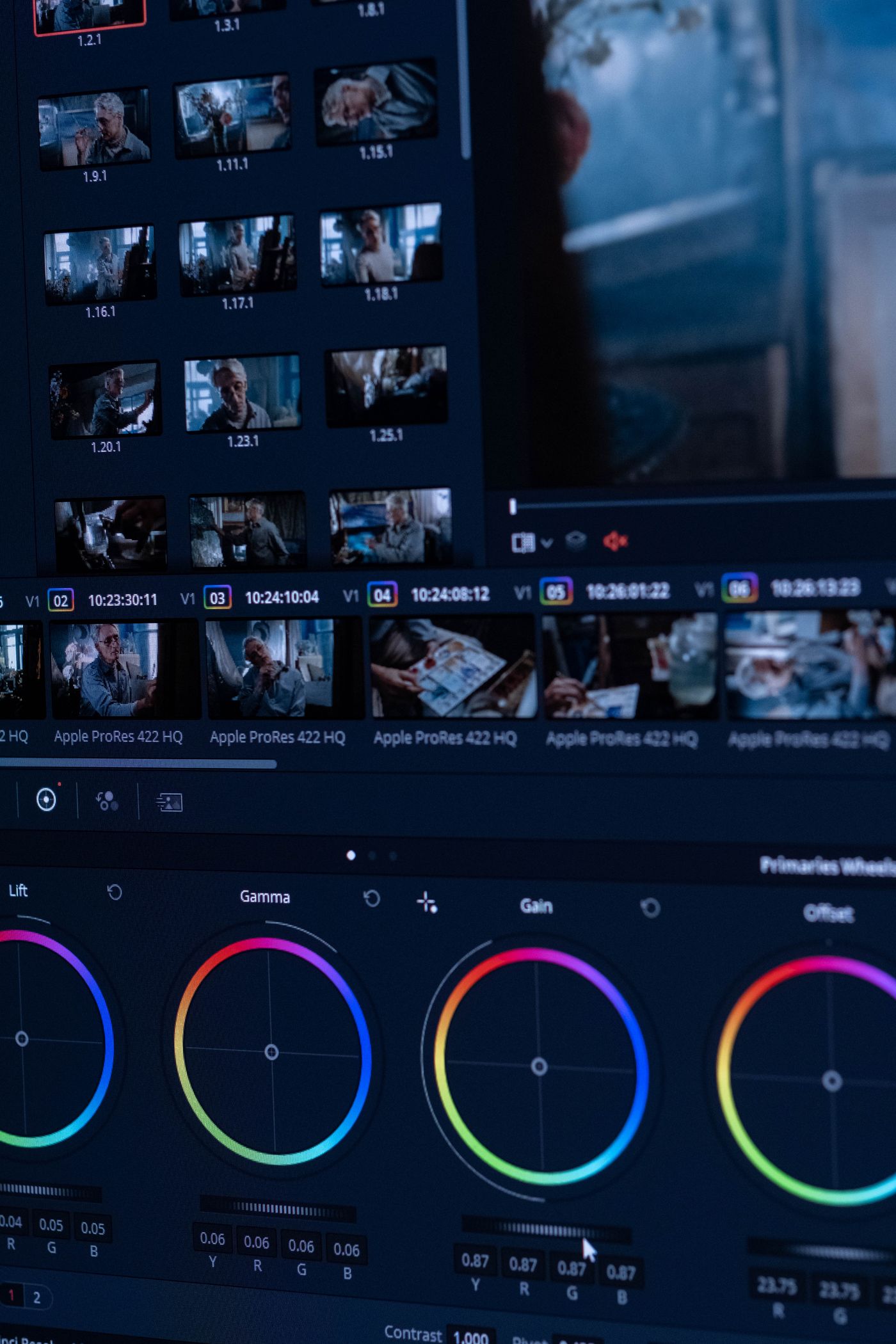
Illustrative photographs from Pexels: editing interface, editing timeline, phone on tripod, color grading monitor, and the cover editing workstation. They are illustrative, not product screenshots or endorsements.
Share this article
Written by
Ali RehmanAuthor at ByteVerse
A Full Stack Developer and Tech Writer specializing in React.js, Next.js, and modern JavaScript, sharing insights on web development, frontend technologies, backend APIs, and scalable applications.
View all posts

