Excel CSV Special Characters Broken? Fix UTF-8 Safely
Import CSV characters with the right encoding, distinguish a bad decode from saved corruption, and check UTF-8 and BOM without overwriting the original.
- 1Preserve the original bytes and choose the documented File Origin before loading a CSV.
- 2A UTF-8 BOM helps detection; it cannot repair saved mojibake, lost characters, delimiters or inferred types.
- 3Check representative multilingual records after import and after exporting a new copy.
If special characters look wrong when you open a CSV in Excel, start with the original file and import it with the correct character encoding. For a file you know is UTF-8, use Data > From Text/CSV, select 65001: Unicode (UTF-8) under File Origin, and check the preview before loading. Do not overwrite the original with a workbook that already shows broken names.
The important exception: selecting UTF-8 cannot undo every kind of corruption. A file that is merely being read incorrectly is different from one that already contains saved garbled text or replacement characters. Establish which situation you have before trying another conversion.
Scope: modern desktop Excel, with Windows menu paths. Microsoft documents the import options; their location and availability vary by platform and build. This guide does not claim a hands-on Excel session or identical menus in Excel for the web. The byte examples below are small, reproducible examples—not screenshots of measured Excel behavior.
First, identify what is actually wrong
Encoding tells software how to turn bytes into characters. When the wrong decoder is used, an accented name can become an apparently unrelated string. This is often called mojibake.
Keep an untouched copy of the export. Then use the symptom to choose the next check:
| Symptom | Check first | What not to assume |
|---|---|---|
Café appears as Café | Reopen the original using its documented encoding | The source bytes are necessarily damaged |
| The file looks correct in a text editor but wrong in Excel | Excel's File Origin during import | The CSV needs a different delimiter to fix its letters |
UTF-8 still shows Café in a newly reopened original | Whether those wrong characters were already saved upstream | A BOM will reverse the earlier mistake |
A name contains a replacement symbol such as � | The original bytes and the decoder used to display them | Seeing a replacement proves the raw file contains one |
A name contains ? or an empty-looking box | Whether it is actual punctuation, saved replacement or a font problem | Every unusual glyph has the same cause |
| The text is readable but everything is in one column | The chosen separator, such as comma or semicolon | UTF-8 is the column-splitting control |
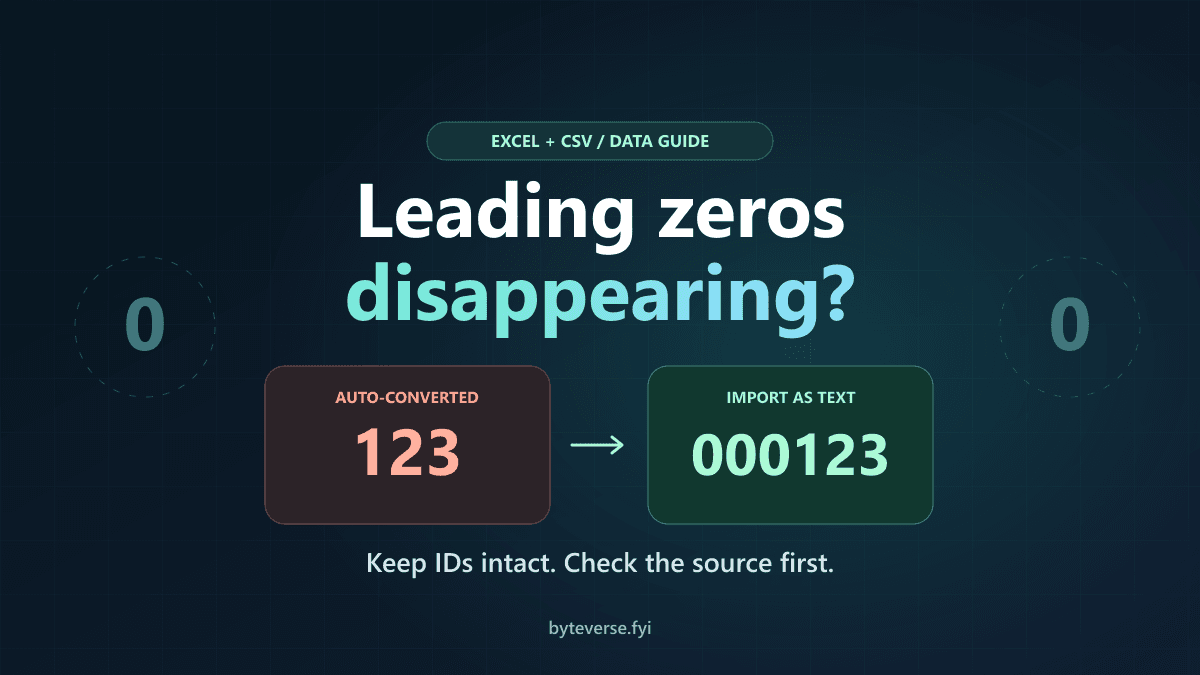
These are separate layers. File Origin controls decoding; Delimiter controls columns; Data Type Detection controls inferred values. Correct-looking characters also do not guarantee correct identifiers. If Excel changes an ID such as 000123 into a number, use our separate guide to preserving leading zeros in CSV, rather than treating that as an encoding error.
Import a known UTF-8 CSV without guessing
Microsoft's UTF-8 CSV guidance explains that a UTF-8 CSV saved with a byte order mark can be opened normally. It also documents explicit import routes for files without that marker. Explicit import is useful because you can inspect the interpretation before accepting it.
1. Begin with the original export
Open a blank workbook. Select Data > From Text/CSV. In some desktop layouts, the route is Data > Get Data > From File > From Text/CSV.
Choose the untouched file from the original system—not a CSV saved from the incorrectly displayed sheet. If it contains customer, employee or other confidential information, keep the investigation in approved local software. A public converter is not a substitute for your organization's data-handling rules.
2. Select the source encoding and inspect known text
For a known UTF-8 export, choose 65001: Unicode (UTF-8) in File Origin. Look at a value whose correct spelling you actually know: an accented surname, a city in another script or a currency symbol.
Do not select UTF-8 just because it is common. If the exporter specifies Windows-1252, UTF-16 or another encoding, use that source encoding. A filename ending in CSV does not identify the charset, and a plain ASCII header can look correct under several decoders.
Microsoft's Text/CSV connector reference documents the File Origin choice and warns that capabilities differ between host applications. It does not promise reliable automatic detection of every unmarked file.
3. Set the delimiter separately
Choose the separator present in the file. A comma-separated sample should show the expected columns; a semicolon-separated export needs semicolon instead.
If Café is still Café after the columns split correctly, the encoding problem remains. Conversely, readable names in one long column call for a delimiter check. Avoid changing Windows-wide regional settings merely to repair one import.
4. Review types and load only after the preview is correct
Where available, Do not detect data types keeps columns as Text for initial review. Select Transform Data if you need to inspect query steps or apply deliberate column types. Then load the table and compare the same known records again.
If your version uses the legacy route, Microsoft's Text Import Wizard also separates file origin, separators and column formats. Use the documented option available in your build; do not assume a missing desktop menu must exist in the web app.
A small multilingual sample to check your import
Use this fictional dataset, not a real customer list. It has three data rows and three columns:
name,city,note
Zoë,München,Café €
李雷,東京,東京支店
علی,لاہور,اردو متن
Save a copy as UTF-8 in a text editor whose encoding you can select. Import it using the steps above, with comma as the delimiter. Your checks are specific:
- The first name is
Zoë, the city isMünchen, and the note contains bothéand€. - The second row retains
李雷and東京, rather than question marks. - The third row retains its Urdu characters. Right-to-left display can differ from left-to-right text without the characters themselves being corrupt.
- There are three columns, regardless of how wide each cell appears.
You can compare a UTF-8 copy with a UTF-8-with-BOM copy. When both are explicitly decoded as UTF-8, they should produce the same data. Any difference in automatic opening is a separate reader-detection behavior; it does not make the BOM-less file invalid.
If your source is JSON rather than an existing CSV, the JSON to CSV converter can create a UTF-8 download with its BOM option enabled. That generates a new exchange file; it does not repair unknown CSV encodings or restore text already damaged upstream. Use only fictional or approved data; the converter's local processing is separate from the site's ads and analytics.
Why the same bytes can display two different ways
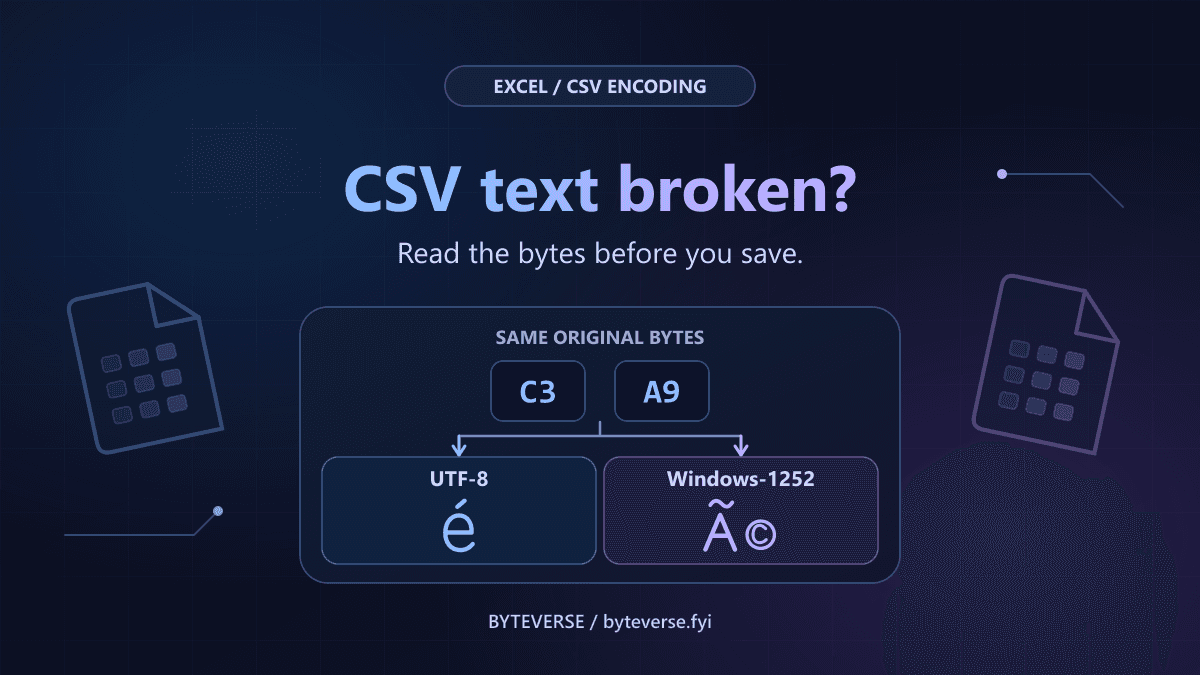
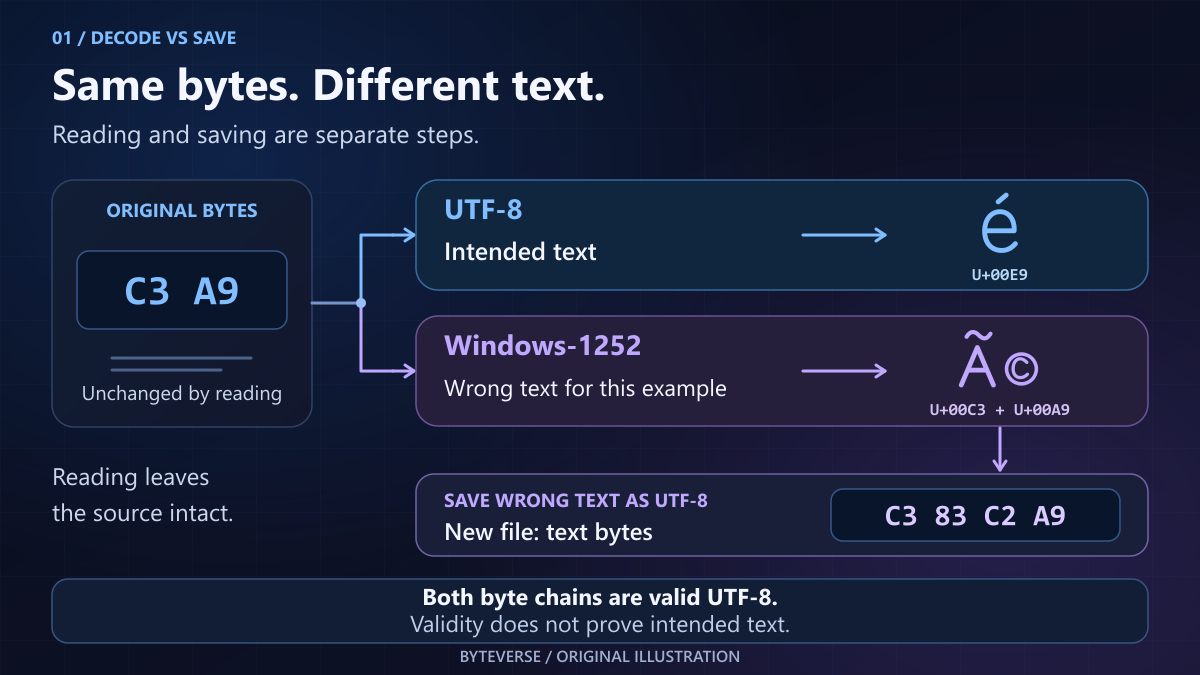
Take the precomposed character é, Unicode code point U+00E9. Its UTF-8 bytes are C3 A9.
If those two bytes are decoded as Windows-1252 instead, they become the two characters à and ©, displayed together as é. The example follows the published Microsoft Windows-1252 byte mapping. That visual symptom alone does not uniquely identify Windows-1252; some other legacy decoders produce the same result for these bytes.
Now imagine saving those wrongly decoded characters as UTF-8. The file no longer contains C3 A9 for this text; it contains C3 83 C2 A9. It is valid UTF-8, but it represents the wrong characters.
| File bytes in hexadecimal | How they are read | Result |
|---|---|---|
C3 A9 | UTF-8 | é |
C3 A9 | Windows-1252 | é |
C3 83 C2 A9 | UTF-8 | Literal saved é |
E9 | Windows-1252 | é |
E9 | UTF-8 | Invalid sequence; a decoder may report an error or show a replacement |
Valid encoding and correct text are different tests. A validator can confirm that bytes form valid UTF-8 without knowing the intended spelling of a customer's name.
What a UTF-8 BOM fixes—and what it cannot fix
A UTF-8 byte order mark is the three-byte sequence EF BB BF at the beginning of the file. In UTF-8 it acts as a signature, not a switch between little-endian and big-endian byte order.
The Unicode BOM FAQ explains both its identification role and compatibility limits. UTF-8 does not require a BOM to represent text correctly, and some receiving systems do not expect one.
For Excel workflows, the marker can help the application recognize UTF-8 when opening the file. It does not:
- Convert Windows-1252 bytes into UTF-8 bytes.
- Change which character sequence is already saved in the file.
- Restore letters replaced with
?or a replacement character. - Specify whether commas or semicolons separate fields.
- Set Excel columns to Text or protect long numeric IDs.
Therefore, prepending a BOM to an arbitrary file is not an encoding repair. First establish the original charset. If conversion is needed, decode using that charset and then encode the correct text as UTF-8.
When choosing UTF-8 still does not fix the text
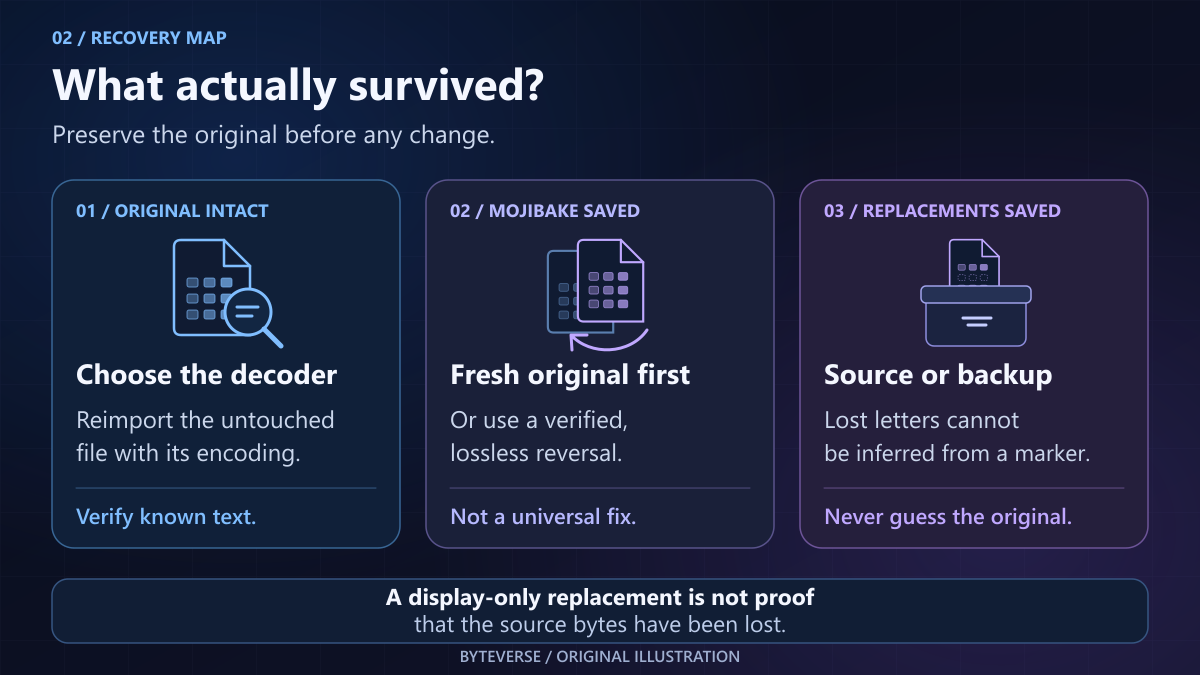
Case A: the original bytes are intact
If the original UTF-8 bytes decode correctly when you explicitly choose UTF-8, reimport that original in Excel. You do not need to replace every visible à with another letter.
For an independent local check, VS Code exposes the file encoding in the status bar. Choose Reopen with Encoding to reinterpret the saved bytes using the intended charset. Save with Encoding instead writes the text currently in the editor using a chosen encoding. Microsoft's VS Code encoding documentation describes these as separate actions.
Work on a copy and avoid saving while the text is wrong. Reopening is the diagnostic operation; saving should follow only after the content is correct. For general editor navigation, see our VS Code workflow tips.
Case B: the wrong characters were already saved
If a fresh UTF-8 read still produces the literal string é, an upstream application may have saved mojibake. Selecting UTF-8 again simply reads those saved characters correctly.
A known, fully reversible misencoding chain can sometimes be undone programmatically. But mixed encodings, repeated conversions and character substitution make blanket reversal unsafe. Recover an original export or compare against the source system before applying a bulk transformation. Search-and-replace is not a general encoding detector.
Case C: original characters were replaced
Unicode's replacement character U+FFFD, displayed as �, encodes in UTF-8 as EF BF BD. A literal question mark is U+003F, byte 3F in UTF-8.
If either placeholder has replaced the original character and that is all you have, it does not contain enough information to identify the lost letter. A backup or source export is needed for reliable recovery.
However, do not diagnose loss from the screen alone. Reading an intact Windows-1252 byte E9 as UTF-8 can display a replacement while the original byte remains unchanged. Likewise, a real question mark may be valid punctuation. Inspect or reopen the original before concluding that its information is gone.
Export a clean copy without repeating the problem
Once the data is correct, keep a workbook copy if you need Excel features. When your Excel build offers CSV UTF-8 (Comma delimited), select that explicit output format for a Unicode CSV exchange rather than assuming a generic CSV option uses UTF-8.
A conventional legacy-encoded export does not necessarily lose every accented character: the outcome depends on whether its selected code page can represent them. It cannot reliably preserve arbitrary multilingual text. Microsoft's text/CSV import and export guidance also explains that text export is limited to the active worksheet and does not preserve all workbook features.
Save to a new file, reopen that copy with the intended encoding, and check representative records again. Use the recipient's documented BOM and delimiter requirements. If the next system rejects a BOM, supply the form it expects; do not make one file variant a universal rule for every application.
For repeatable Power Query workflows, inspect the Source step rather than relying on a past manual opening. Csv.Document documents 65001 as its default Encoding value. That M-function default is not a promise that every import UI or previously generated query will automatically select the right encoding.
Common false fixes to avoid
- Changing the font to repair
é. A font may fix missing-glyph boxes; it cannot change wrongly decoded code points into the intended name. - Renaming the extension. CSV, TXT and XLSX are not interchangeable encoding settings. A different extension does not transcode bytes.
- Saving the garbled view as UTF-8. This can make the wrong text persist as valid UTF-8. Establish the correct text first.
- Trying random encodings and accepting the first readable sentence. Basic Latin text works under several encodings; check non-ASCII records from throughout the file.
- Using an AI tool to guess people's names. Plausible spelling is not evidence. Recover source data rather than manufacture a correction.
Before sending the result, verify the charset, separator, row count and a few known multilingual values. The goal is not merely a file labeled UTF-8; it is the same intended text surviving the entire export-and-import path.
Frequently Asked Questions
Why does Excel show strange characters in a CSV?
One common cause is decoding the file with a different charset from the one used to write it. Import the untouched source with its documented encoding and inspect known text. If the wrong characters were already saved upstream, changing the import setting will not necessarily repair them.
Does a CSV need a UTF-8 BOM to open in Excel?
For a CSV encoded this way, Microsoft documents normal opening when a BOM is present and explicit import alternatives when it is absent. The marker is not mandatory for valid text in this encoding, and not every reader expects one. Choose File Origin deliberately when importing and follow the receiving system's requirements when exporting.
Can I recover letters that became question marks?
First determine whether the question marks are genuine punctuation, a display effect or saved replacements. If they replaced original characters in the only surviving data, they do not reveal what was lost. Use the source system or a backup instead of guessing the missing letters.
Will changing the delimiter fix corrupted accents?
No. Delimiters split text into fields, while character encoding maps bytes to characters. Fix File Origin for misread text and choose the actual separator for incorrect column splitting. These checks are independent.
Why does saving as UTF-8 not fix text that is already garbled?
Saving encodes the characters currently held by the application, including any wrong ones. A correctly encoded file can therefore contain saved mojibake. Reopen the original bytes using the correct source encoding before saving a new copy; existing replacements may require recovery from a separate source.
Verification Notes
Documentation reviewed October 12, 2026. The sample data is fictional. Automated checks used actual UTF-8 and Windows-1252 decoders to verify the byte examples, and the site's actual conversion engine to verify all three multilingual records and downloads with and without a BOM. The rendered article and FAQs were also checked. These tests do not establish how every Excel build behaves: no hands-on Excel import, Windows code-page change, real user file conversion or successful recovery of lost text is claimed. The original illustrations explain the process rather than reproduce an Excel screen.
Sources and Image Credits
- Microsoft: opening UTF-8 CSV files in Excel.
- Microsoft Learn: Text/CSV connector controls and limitations.
- Microsoft Learn: Csv.Document and its Encoding option.
- Unicode: UTF encodings, replacement handling and the BOM.
- Microsoft Windows-1252 mapping hosted by Unicode.
- Microsoft: VS Code file-encoding support.
- Microsoft: importing and exporting text/CSV.
- Microsoft: Text Import Wizard.
Cover and both diagrams: ByteVerse original illustrations. Microsoft, Excel and VS Code are product names used to identify the relevant workflow; this independent guide is not an endorsement by Microsoft.
Share this article
Written by
Ali RehmanAuthor at ByteVerse
A Full Stack Developer and Tech Writer specializing in React.js, Next.js, and modern JavaScript, sharing insights on web development, frontend technologies, backend APIs, and scalable applications.
View all posts