
Excel Removing Leading Zeros in CSV? Keep IDs Intact
Excel dropping zeros or changing long IDs from CSV? Check the original file, import identifiers as Text, and distinguish a display change from data you must recover from the source.
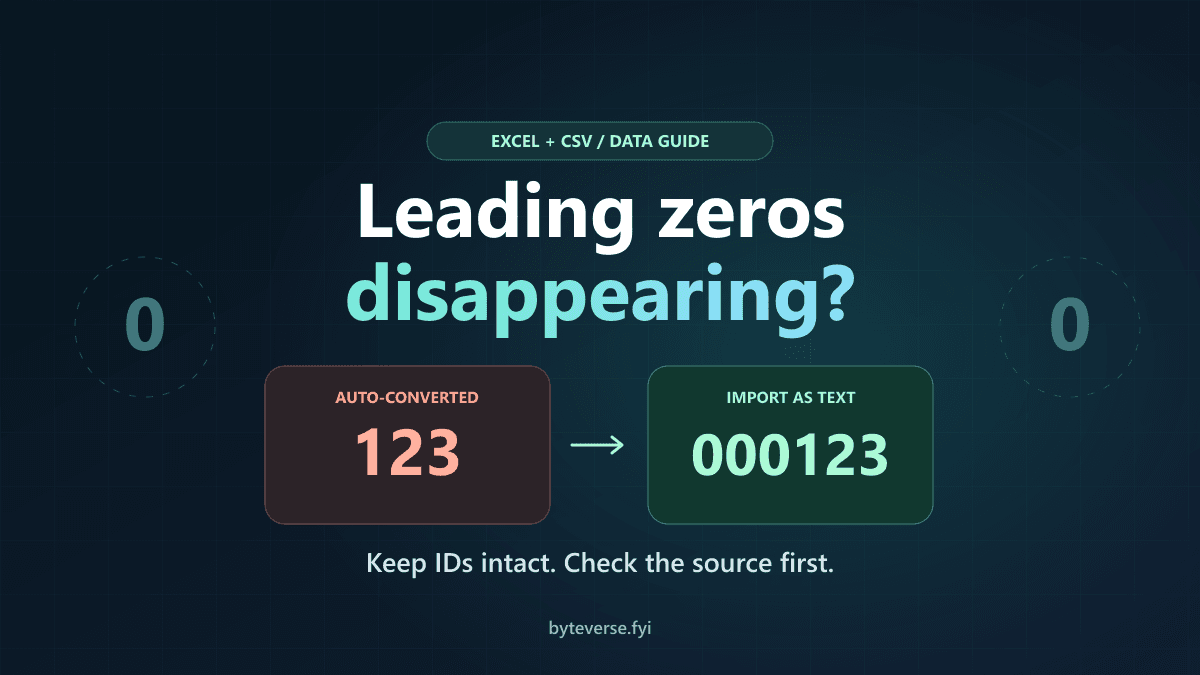
- 1Check the untouched CSV in a text editor before repairing an Excel import; a wrong display does not prove the source file changed.
- 2Import identifier columns as Text before numeric conversion; Excel conversion settings and Power Query type steps are separate controls.
- 3Known-width padding is not general data recovery, and a new CSV export still needs correct type handling by its recipient.
If Excel removes leading zeros when you open a CSV, import the identifier columns as Text before Excel converts them to numbers. In desktop Excel, start with Data > From Text/CSV, check the delimiter, and use Transform Data to control the column types. Changing a damaged cell to Text afterward does not bring the original characters back.
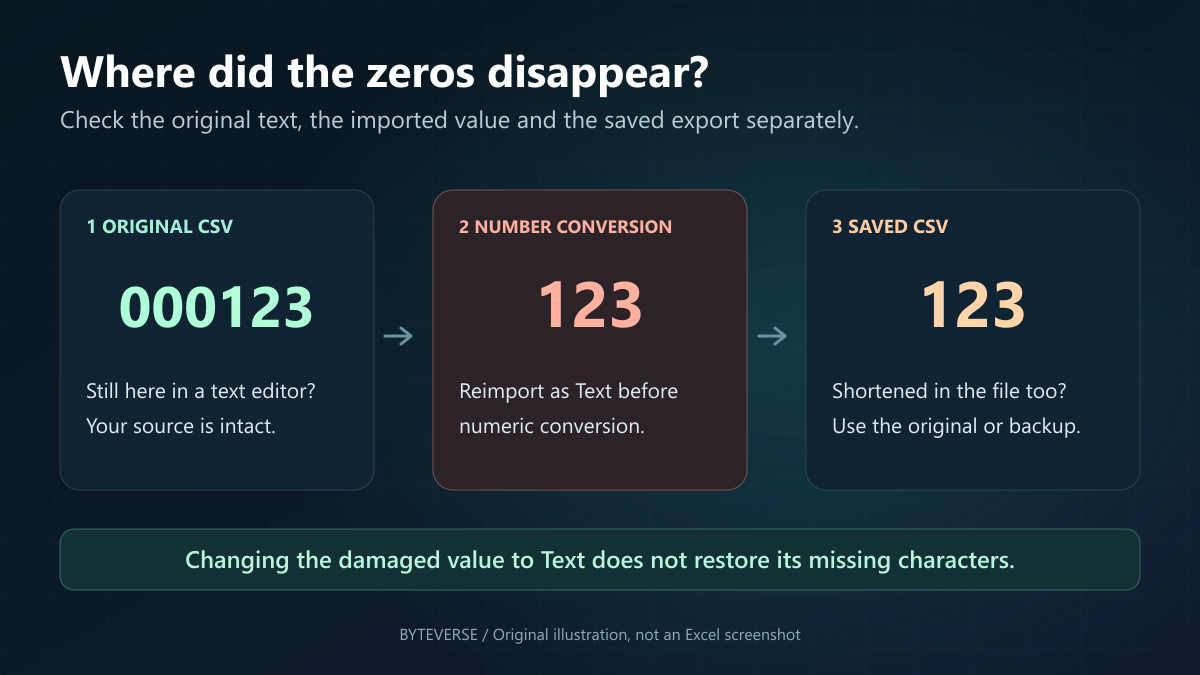
First, open a copy of the CSV in a plain text editor. If it still contains 000123, the source has not lost those zeros: Excel's interpretation is the problem. If the file itself now contains 123, return to the original export or a backup. Do not save the incorrectly interpreted workbook over your only good file.
The same workflow protects tracking IDs with more than 15 digits, postal codes and product codes. These are identifiers, even when they contain only digits; you normally need an exact match, not arithmetic.
Checked October 8, 2026. Excel menu paths and version availability below come from Microsoft's documentation. The fictional JSON and CSV example was checked against ByteVerse's converter and a CSV parser. The diagrams are original illustrations, not Excel screenshots; no hands-on Excel installation or account-specific result is claimed.
Why a CSV can be correct while Excel shows the wrong value
A CSV contains characters, separators and optional quoting. It does not carry Excel cell types or workbook formatting. Excel must decide how to interpret each field. Under automatic numeric conversion, 000123 becomes the number 123: those values are equal mathematically, but they are not the same customer ID.
Long identifiers introduce a second problem. Microsoft documents 15 significant digits of precision for Excel worksheet numbers. If an 18-digit tracking ID becomes a worksheet number, later digits can be replaced with zeros. Displaying the cell in scientific notation is not, by itself, proof that digits were lost; widening the column or changing its display can expose more digits. But neither operation can reconstruct digits that conversion already discarded.
That distinction matters when someone says, "I fixed it by formatting the column." You must establish whether they preserved the original text, merely changed its appearance, or padded a damaged value using a known rule.
| What you find | What it means | Next action |
|---|---|---|
Text editor shows 000123; Excel shows 123 | The source is intact; its import is not | Reimport the original column as Text |
| Text editor shows all 18 digits; Excel does not | Numeric conversion may have changed the ID | Reimport as Text and compare every digit |
| The saved CSV already contains the shortened value | The change reached the exported file | Recover the original export or backup |
A cell shows 1.23457E+17 | This is a display format, possibly combined with precision loss | Compare the stored value with the original source |
| Every field appears in one column | Delimiter interpretation is wrong | Choose the actual delimiter during import |
Recommended method: import the CSV with explicit Text columns
Use this route when you need a repeatable import rather than a one-time display fix. Microsoft's leading-zero guidance recommends Get & Transform, also called Power Query, for choosing column types during import.
1. Start from the untouched file
Open a blank workbook and choose Data > From Text/CSV. Depending on the Excel version, the command can sit under Get Data > From File. Select the original CSV, not a new export from the workbook that already lost characters.
For a harmless practice run, copy this fictional sample into a plain text editor and save it as a CSV. It contains two records and four columns, not real customer information:
customer_id,tracking_id,postal_code,amount
000123,123456789012345678,00123,19.95
000007,987654321098765432,00501,7.50
2. Check the preview before loading
Choose the delimiter that actually separates the fields. For the sample, that is a comma. The preview should show four columns, not one long column. Check the file encoding too if names contain accented or non-Latin characters.
Where the Text/CSV preview offers Data Type Detection, choose Do not detect data types. Microsoft's Text/CSV connector documentation describes this choice as leaving all columns as Text. Then select Transform Data, rather than loading guessed types immediately. Host applications and Excel builds can expose different options, so inspect the query steps if that dropdown is absent.
3. Remove an earlier conversion before assigning Text
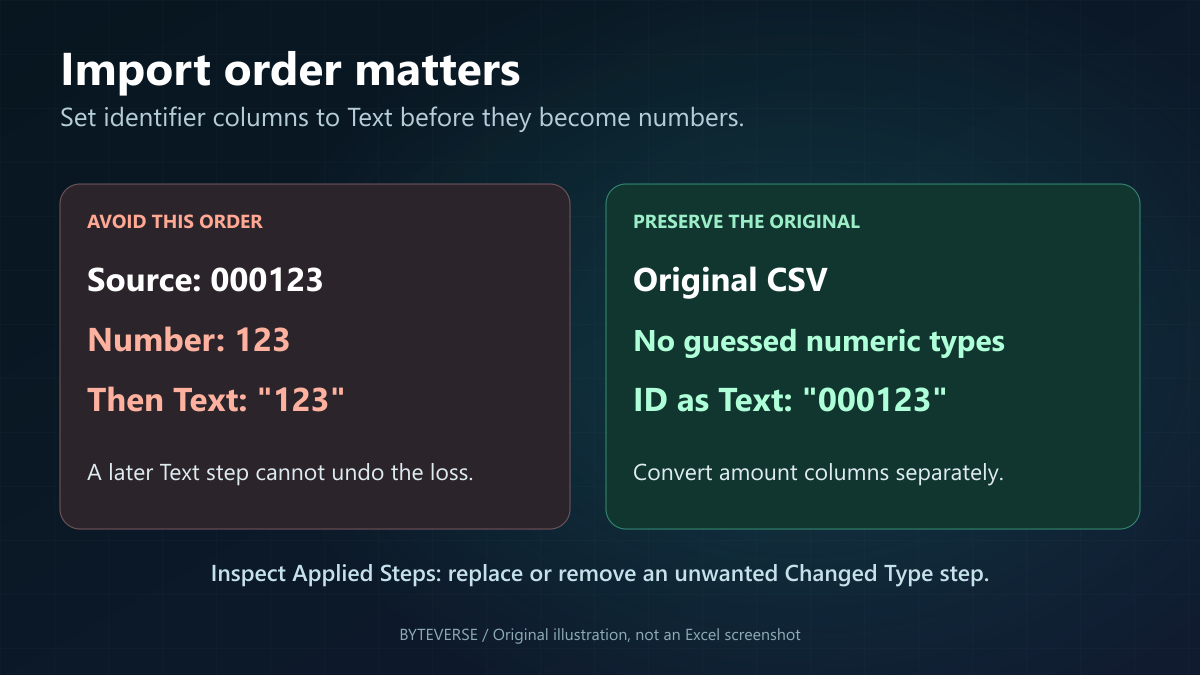
In Power Query, inspect Applied Steps. Automatic detection can add a Changed Type step. Microsoft says the default detection for unstructured sources inspects the first 200 rows; that is a guess, not a schema supplied by your export.
If an automatic Changed Type step converted your identifier columns into numbers, remove or edit that conversion before adding a Text step. In a fresh import, deleting just that automatic step and then setting the desired types is straightforward. Preserve other intentional transformations in an existing query; do not delete every step indiscriminately.
Why does the order matter? Converting a value to a number and then converting that number to text produces text such as 123, not the original 000123. The useful pipeline is original source > identifier as Text, not source > number > Text. If a Change Column Type dialog offers Replace Current, use it to replace the unwanted conversion instead of appending another conversion after it.
4. Give identifiers and amounts different types
Set customer_id, tracking_id and postal_code to Text using the type icon beside each column heading. Keep amount numeric if you intend to calculate totals. For monetary values with up to four decimal places, Power Query's Fixed Decimal Number type is another documented choice; it is not a solution for identifiers, which should remain Text.
For the sample, check that the first customer ID is still six characters, the postal code is five characters, and the tracking ID is all 18 original digits. Do not rely on left or right alignment as the only check. If an amount uses a decimal comma or a date uses a regional layout, set its type using the appropriate locale rather than applying that rule to all columns.
5. Load, verify and keep a workbook copy
Choose Close & Load. Save your working file as an Excel workbook if you need to retain the query, column types and other workbook features. Refreshing the query can then repeat those transformations on a new export with the same structure.
If your data started as a PDF, extraction and import are separate checks. Our Excel From PDF troubleshooting guide covers connector availability; the Text-column check here applies after the data has been extracted. An extraction tool returning 000123 correctly does not stop Excel from guessing that it is a number later.
Faster option: turn off the relevant automatic conversions
Microsoft lists the Automatic Data Conversions feature for Excel for Microsoft 365, Excel for Microsoft 365 for Mac, Excel 2024 and Excel 2024 for Mac. If your edition does not expose it, use an explicit import instead of looking for an unavailable checkbox.
The documented paths are:
- Windows: File > Options > Data > Automatic Data Conversion.
- Mac: Excel > Preferences > Edit > Automatic Data Conversion.
Before opening the original file again, disable Remove leading zeros and convert to number. If you handle long IDs, also disable Keep the first 15 digits of long numbers and display in scientific notation if required. Microsoft says those fields will then be retained as text instead of receiving those conversions.
The settings also include conversions involving the letter E and some date-like strings. A product code such as 123E5 is different from the numerical quantity written in scientific notation; disable that conversion when your workflow requires the literal code. Do not treat the date checkbox as a universal date detector switch: Microsoft notes that values containing spaces or punctuation may still be interpreted as dates.
Important: these settings do not directly control Power Query imports. Power Query has its own type-detection and transformation steps. Microsoft's automatic conversion reference explicitly separates the two. Changing the checkbox cannot repair values already converted in a workbook or replace a Text step inside a query.
Older Excel: use the Text Import Wizard
Microsoft still documents the legacy Text Import Wizard. On Windows builds with the option, enable From Text (Legacy) under File > Options > Data > Show legacy data import wizards, then open it through Data > Get Data > Legacy Wizards.
In the wizard, choose Delimited, select the actual delimiter and review the preview. In Step 3, select each identifier column and choose Text as its column data format before finishing. Leaving those columns as General lets Excel interpret them again.
Microsoft also documents opening a text-file copy with a TXT extension to invoke the legacy wizard. If you take that route, rename a copy, not your only original. These are desktop workflows; do not assume the same menus or conversion settings exist in Excel for the web. On a managed device, use the import route approved and available in your installation.
Recovering zeros and digits already removed
Recovery depends on what information survives. If the original file still contains every character, reimporting is recovery. If every customer ID is defined by the source system to be exactly six digits, padding 123 to six digits can reconstruct 000123 under that known rule.
For that specific case, Microsoft's TEXT function supports a formula such as =TEXT(A2,"000000"). Use it in a separate column; for an intact numeric value of 123 it returns six-character text. The six zeros encode a rule you supplied. The formula did not discover the missing width.
Do not apply that formula to a mixed-width identifier column. If 123, 0123 and 000123 are three valid IDs in the source system, guessing a width merges distinct records. An 18-digit tracking ID with lost ending digits is worse: adding zeros to the beginning cannot recover its missing ending digits. Obtain a fresh source export instead.
A custom format such as 000000 can make a numeric cell display a fixed width inside a workbook. That is useful for presentation, but it is not the same as retaining an original string or preserving an 18-digit identifier. Distinguish the visible cell, its stored value and the literal exported CSV before calling the repair complete.
Why the zeros disappear again after saving as CSV
A CSV does not save the workbook's Text-column instructions for the next program that opens it. Even if your export contains the right characters, double-clicking it can start automatic type inference all over again.
Keep the source and workbook separately, export only the intended worksheet, and inspect the new CSV in a text editor before sending it. Then test the recipient's actual import workflow with a harmless sample. A CRM import, an Excel double-click and a Power Query import need not interpret the same field identically.
Double quotes are not a Text-column declaration. Quoting "000123" is valid CSV syntax, but it does not instruct every spreadsheet to preserve a string. CSV quoting groups fields and escapes commas, quotes and line breaks; it is not an Excel type schema. A UTF-8 byte order mark helps encoding detection in relevant readers, not identifier typing.
Avoid turning every ID into a formula such as ="000123" as a general exchange-file solution. That changes a value into spreadsheet-specific formula syntax. Prefixes such as an apostrophe or tab can also become literal characters in downstream software. OWASP's CSV injection guidance warns that untrusted formula-like fields need special handling and that there is no universal CSV sanitization strategy for all consumers. Do not disable security warnings to make an export look right.
JSON to CSV: preserve the ID before Excel sees it
When the source is an API, store IDs as JSON strings. Under the JSON specification, 000123 is not a valid number token; "000123" is a valid string. Long numeric identifiers can also lose precision inside software that parses them as floating-point numbers, before a CSV converter ever receives them.
Here is the same fictional dataset as JSON:
[
  {
    "customer_id": "000123",
    "tracking_id": "123456789012345678",
    "postal_code": "00123",
    "amount": 19.95
  },
  {
    "customer_id": "000007",
    "tracking_id": "987654321098765432",
    "postal_code": "00501",
    "amount": 7.50
  }
]
You can try this non-sensitive sample in the ByteVerse JSON to CSV converter. Choose JSON input, keep the root array as the row source, include the header and select comma as the delimiter. No array expansion is needed. The CSV should match the earlier sample: two records, four columns, exact identifier strings.
This example was checked against the converter's actual engine: both tracking IDs and all leading zeros survived conversion, and the original amount token 7.50 was preserved. That verifies this JSON-to-CSV step, not what Excel will do next. Import the identifier columns as Text using the earlier method. A converter cannot restore digits that the upstream application already lost.
Use only fictional or approved data for experiments. Local conversion is not permission to handle confidential exports on any website; follow your organization's approved process. For PDF invoices, the invoice PDF to Excel tool has a separate review workflow, but you should still check extracted identifiers against the source document rather than assuming every character was recognized.
A short check before you send the file
Compare a few known records at every boundary: the source export, the import preview, the loaded worksheet and any exported file. For the practice data, the checks are concrete:
- There are two data records and four columns.
- The customer IDs are
000123and000007, not 123 and 7. - The postal codes are
00123and00501. - Both 18-digit tracking IDs match the original characters exactly.
- Amounts can be calculated after applying the intended numeric type; identifiers remain Text.
If everything appears in one column, choose the correct delimiter in the import dialog before checking types. Avoid changing Windows-wide regional separators just to open one file: Microsoft's import guide notes that such a change affects other applications. Choose the delimiter per import where possible.
Data-type checks are a small but useful part of the data-cleaning work described in our data analyst learning roadmap. A file that looks tidy is not necessarily correct; a comparison with an unchanged source is stronger evidence than formatting alone.
Frequently Asked Questions
How do I stop Excel removing leading zeros from CSV files?
Import the original CSV and set identifier columns to Text before numeric conversion. In Power Query, disable automatic type detection where available and replace any unwanted Changed Type step. Supported Microsoft 365 and Excel 2024 desktop editions also offer automatic conversion settings, but those settings do not directly control Power Query.
Do double quotes keep leading zeros in Excel?
Not reliably. Double quotes are CSV field syntax, not a column type. Excel can still interpret the field as a number. Use an explicit Text import or the relevant automatic conversion setting, then compare the imported value with the original CSV.
Can I recover zeros or digits that Excel already removed?
Reimport from an intact original or backup. Padding is appropriate only when you independently know the correct identifier width. It cannot recover arbitrary missing ending digits from a long ID that was converted to a number. Changing the damaged cell to Text afterward does not recreate the original value.
Why do the leading zeros disappear when I reopen a saved CSV?
The CSV may still contain them. Opening it again can trigger automatic type inference because the file does not store Excel column types. Inspect the saved text first, keep a workbook copy for Excel work, and import the CSV as Text wherever the identifiers must remain exact.
Does changing the Excel conversion setting also fix Power Query?
No. Microsoft states that automatic data conversion options do not directly affect Power Query imports. Inspect the query's own type detection and Applied Steps, then assign Text to identifier columns before any step converts them to numbers.
Sources and Image Credits
Primary documentation checked October 8, 2026:
- Microsoft: keeping leading zeros and large numbers.
- Microsoft: automatic data conversions and their Power Query boundary.
- Microsoft: importing and exporting text and CSV files.
- Microsoft Learn: Text/CSV connector and data-type detection.
- Microsoft Learn: Power Query data types and automatic Changed Type steps.
- Microsoft: legacy Text Import Wizard.
- Microsoft: TEXT function and known-width padding.
- RFC 4180: CSV fields and quoting.
- RFC 8259: JSON number grammar and interoperability.
- OWASP: CSV formula injection and mitigation limits.
The cover and two diagrams are ByteVerse original illustrations. All sample records are fictional. Images explain data-handling choices; they are not product screenshots, measured Excel results or an endorsement by Microsoft. The exact converter example is a local reproducibility check, not a guarantee for other files or spreadsheet versions.
Share this article
Written by
Ali RehmanAuthor at ByteVerse
A Full Stack Developer and Tech Writer specializing in React.js, Next.js, and modern JavaScript, sharing insights on web development, frontend technologies, backend APIs, and scalable applications.
View all posts