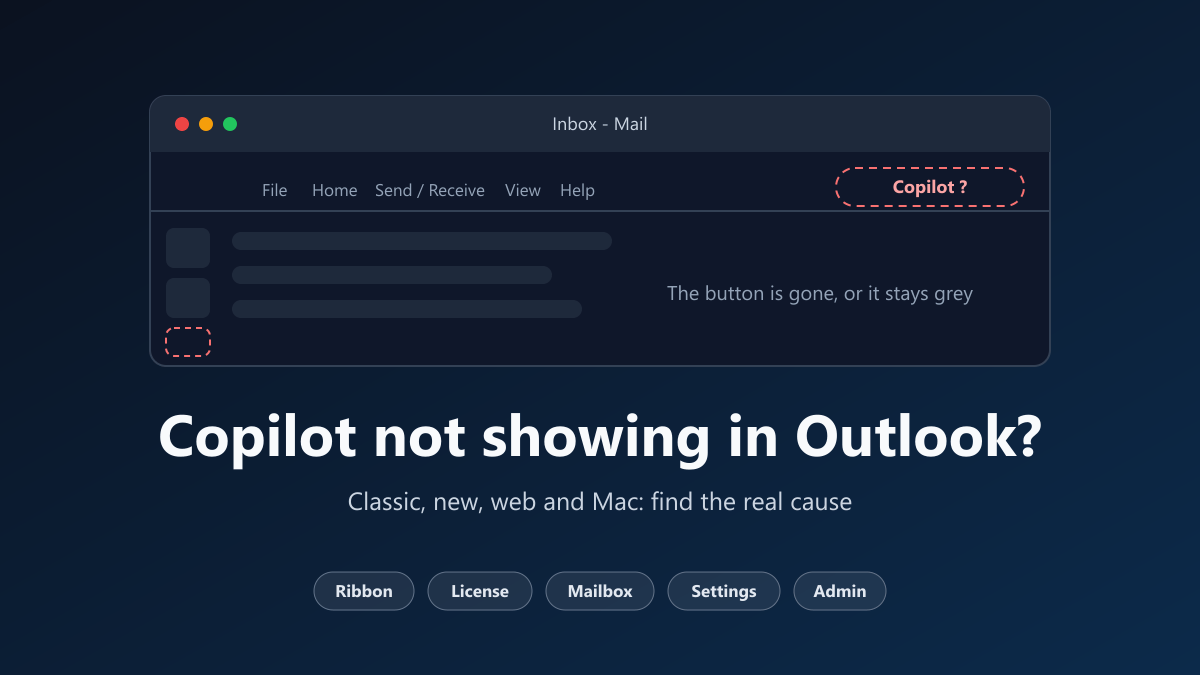
Copilot Not Showing in Outlook? Fix Classic, New and Mac
Why Copilot is missing or greyed out in classic Outlook, new Outlook, Outlook on the web and Outlook for Mac, checked against Microsoft's support and admin pages on 25 November 2026: a one-minute test that separates app problems from account problems, and the fix for each cause.
- 1Open Outlook on the web with the same account first: if Copilot appears there, the account works and the fault is in the Outlook app; if not, check the license, the mailbox and the admin settings
- 2In classic Outlook the Copilot entry point is moving next to the ribbon in a rollout planned for mid to late November 2026, and the known issue that removed the buttons on build 20026.20182 and later is marked fixed
- 3A Copilot icon that stays grey on every email usually means the mailbox is on a company Exchange server, and Schedule with Copilot, meeting prep and themes are not available in classic Outlook at all
When Copilot is not showing in Outlook, the cause is almost always one of five things. The button has moved, your account doesn't include it, your mailbox isn't in Microsoft's cloud, a setting hides it, or the feature you want isn't part of your version of Outlook. Reinstalling Office fixes none of them. A one-minute test tells you which group you are in.
I checked every step below against Microsoft's support pages, its admin documentation and its message center on 25 November 2026. I don't have a work tenant with a Copilot license to test on, so there are no screenshots here. The diagram is my own, and the sources at the end link to the Microsoft page behind each fact.
This guide is about Outlook only. If Copilot is missing in Excel, Word or PowerPoint, read our Copilot in Excel not showing guide. Those apps use a different button, and that guide explains the license labels in more depth.
The one-minute test
Open Outlook on the web in a browser and sign in with the same account you use in the Outlook app. For a work or school account, Microsoft's sign-in page sends you to Microsoft365.com or outlook.office365.com. For a personal account, go to Outlook.com.
Now look for Copilot. On the web, the Copilot button for chat sits in the upper part of the window, and a Copilot icon appears in the toolbar when you start a new message.
- Copilot is there on the web. Your account, license and mailbox work. The fault is in the Outlook app on this computer: a moved button, an old build or a local setting. Go to sections 1, 6 and 7.
- Copilot is missing on the web too. The app is not the problem. Check your mailbox, license and your organization's settings in sections 2, 4, 5 and 9.
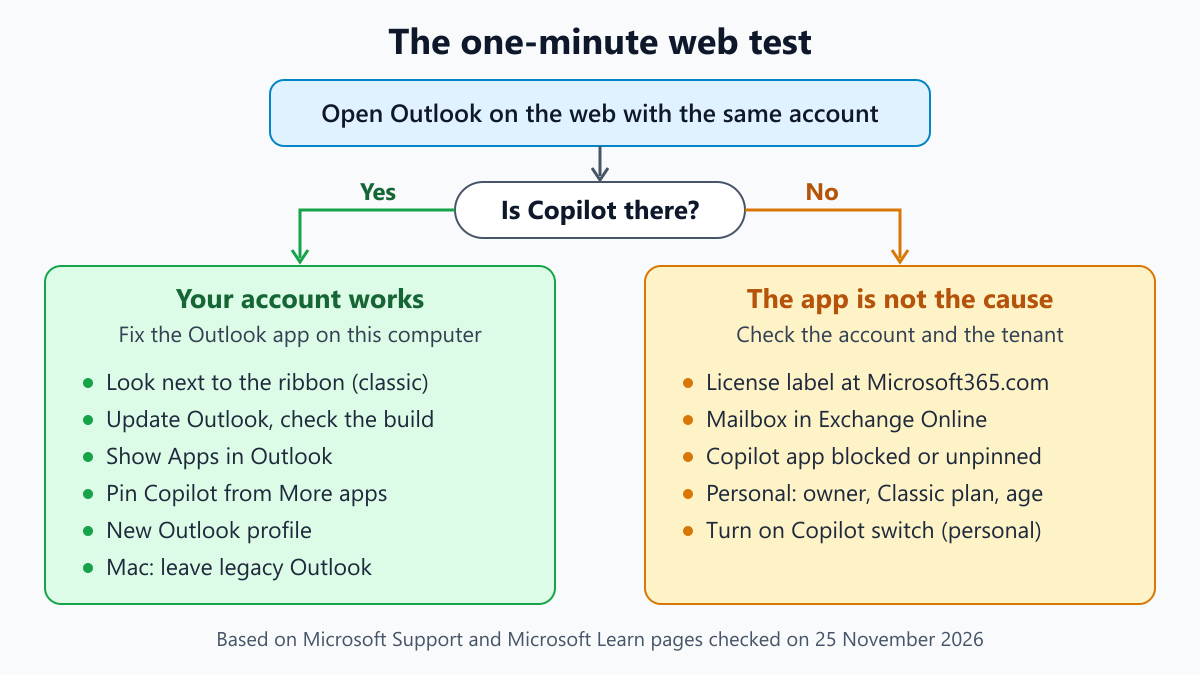
One case breaks this test. If your company keeps your mailbox on its own Exchange servers, Copilot fails everywhere, because Microsoft says Copilot "has no access to on-premises mailboxes". Section 2 covers that.
What you see, and what it usually means
| What you see | Usual cause | Section |
|---|---|---|
| Copilot gone from classic Outlook after an update | The entry point is moving next to the ribbon, or the build 20026.20182 bug | 1 |
| A Copilot icon that stays grey on every message | The mailbox is on your company's Exchange server | 2 |
| Copilot grey on one message only | That email is signed, encrypted or protected | 3 |
| No Copilot on the web or the desktop, work account | License, or an admin blocked or unpinned it | 4 and 9 |
| No Copilot with a personal Microsoft account | Not the plan owner, a Classic plan, or switched off on another device | 5 |
| No Draft with Copilot in new Outlook or on the web | The message is in plain text | 6 |
| Nothing at all in Outlook for Mac | Legacy Outlook for Mac | 7 |
| No Schedule with Copilot, meeting prep or themes in classic Outlook | Those features are not in classic Outlook | 8 |
| Outlook 2021, Outlook 2024 or Office LTSC | These versions don't include Copilot | 2 |
1. Classic Outlook: the button moved, or an update removed it
Classic Outlook for Windows went through two changes this autumn, and from the outside they look the same.
The entry point is moving. In message MC1441784, Microsoft says the Copilot entry point in classic Outlook will be "located next to the Outlook ribbon". The worldwide rollout was set to start in mid-November 2026 and finish by late November, with government clouds following in December. The Copilot side pane stays. So before you change anything, look along the ribbon, not only in the top right corner of the window.
A bug removed the buttons, and it is marked fixed. On classic Outlook build 20026.20182 and later, some people lost every Copilot entry point. It hit the free Copilot Chat and paid licenses alike. Copilot sometimes showed in Add apps, but Open did nothing. Microsoft traced it to Outlook failing to read account information from the Outlook profile, and its known issue page now says "STATUS: FIXED".
If Copilot is still gone, work through these in order:
- Update Outlook. Select File > Office Account > Update Options > Update Now, then restart Outlook. The same page shows your version and build.
- Turn on Show Apps in Outlook. Select File > Options > Advanced, and under Outlook panes, tick Show Apps in Outlook. Microsoft says Copilot may not appear in the app bar while this is off.
- Pin Copilot again. In the bar on the left, select More apps. If Copilot is listed, right-click it and pin it. If it isn't, Add apps lets you find it.
- Create a new Outlook profile. This is one of Microsoft's own workarounds. Hold Shift while Outlook starts, choose Options and then New, type a profile name, and sign in to your account again. The old profile stays, so you can go back to it.
While you work through these, Microsoft's other workaround is to switch to new Outlook or the web version.
Check the update channel too. The Product Information area on that same page names your update channel. Semi-Annual Enterprise Channel is the one to worry about: Microsoft says Copilot features aren't available in the desktop apps there. Moving the PC to Current Channel or Monthly Enterprise Channel is a job for your IT team.
2. Grey everywhere: where your mailbox lives
Copilot in Outlook reads your mail from Exchange Online, Microsoft's cloud email service. Microsoft's FAQ says Copilot isn't available on "mailboxes that are not hosted on Exchange Online", and it never works in group mailboxes.
Some companies still run a hybrid setup, with part of the mailboxes on their own Exchange servers. Microsoft's Exchange documentation has a table for this case. Here is the short version:
| Outlook you use | Where your mailbox is | What Microsoft says happens |
|---|---|---|
| Outlook from a Microsoft 365 subscription | Exchange Online | The icon works: Copilot Chat without a Copilot license, full Copilot with one |
| Outlook from a Microsoft 365 subscription | Your company's Exchange server | The icon shows but is greyed out and nothing opens, even with a Copilot license |
| Outlook bought once or under a volume license | Either | No Copilot in Outlook at all |
The second row is the classic greyed-out case. Nothing on your PC changes it. The mailbox has to move to Exchange Online, and that is an IT project.
The third row covers Outlook 2021, Outlook 2024 and Office LTSC. Microsoft's comparison page lists Copilot in Outlook only under Microsoft 365 subscriptions, and its Office LTSC 2024 announcement says LTSC "does not qualify" for Copilot. If that's your Outlook and you don't want a subscription, see our AI email assistants comparison for tools that don't depend on Copilot.
Accounts added by IMAP or POP, such as Gmail in classic Outlook, aren't Exchange Online mailboxes either. In the newer Outlook apps they can borrow Copilot from a licensed account, which section 5 explains.
3. Grey on one email only
If Copilot works on most messages but not on one, look at that message. Microsoft says the Copilot features in Outlook don't work on signed or encrypted emails, on emails protected with IRM, or on some emails with a sensitivity label. Copilot also can't read messages protected with S/MIME or Double Key Encryption.
Open an ordinary email from a colleague and select Summarize there. If it works, nothing is broken. The protection on the first message is doing its job.
4. Work or school account: what your license includes
Outlook is the exception among the Office apps. Microsoft's license page says "All subscribers have access to Copilot in Outlook." The free Copilot Chat that comes with eligible business plans works inside Outlook and can answer questions about your inbox, calendar and meetings. A paid Microsoft Copilot license adds answers that also draw on your chats, files and other company data.
To see what you have, sign in at Microsoft365.com with your work account, then scroll down to the end of the home page. The label below your name is one of three: M365 Copilot (Premium) for the paid Copilot license, M365 Copilot (Basic), or Copilot Chat (Basic).
Then three quick checks:
- The right account. In classic Outlook, File > Office Account shows who is signed in to Office. If a personal Microsoft account is signed in there instead of your work account, Copilot will look unlicensed.
- A fresh license. Open Word or Excel, select File > Account > Update License, then close and reopen every Microsoft 365 app, Outlook included. On a Mac, open Word and select Word > About Word > More Info > Refresh License.
- Time. New licenses take a while to arrive in the apps. If yours was assigned today, refresh it, restart, and if needed try again the next day.
Microsoft has also renamed Microsoft 365 Copilot to Microsoft Copilot, so older internal guides may use either name for the same product. And Copilot isn't available at all when Microsoft 365 Apps use device-based licensing, which some schools and shared PCs use.
5. Personal Microsoft account: Outlook.com, Personal and Family
With a personal account, Copilot in Outlook comes from a Microsoft 365 Personal, Family, Premium or Pro subscription. Four rules catch people out:
- Only the owner gets it. In a Family or Premium plan, Copilot belongs to the person who set up the subscription. Microsoft says these AI benefits "cannot be shared with others".
- Classic plans leave it out. In January 2025, when Copilot came to Personal and Family, Microsoft offered existing subscribers Personal Classic and Family Classic plans that stay as they were before. Microsoft 365 Basic has no Copilot either. Check your plan name under Services & subscriptions in your Microsoft account.
- Age limits. Microsoft turns off the AI features in Outlook for users under a minimum age, which depends on the country.
- The switch follows your account. Outlook has a Turn on Copilot setting: Settings > Copilot in new Outlook and on the web, Quick Settings > Copilot on Mac, iPhone and Android. Microsoft says the choice applies to Outlook "on all your devices" with that account. Turn it off on your phone, and it's off on your laptop too.
Classic Outlook for Windows has no Turn on Copilot setting, and Microsoft gives no date for one. Connected experiences also matter: Microsoft says Copilot works in the Outlook apps "as long as Connected Experiences is not turned off" in the privacy settings.
Gmail and other accounts in the same app. Say a licensed account is signed in to new Outlook, Outlook for Mac, Outlook mobile or the web. Microsoft says Copilot then also works for the other accounts in that app on the same device, including Gmail, Yahoo and iCloud. This sharing is not available in classic Outlook for Windows. If you would rather have Google's assistant inside Gmail, see Gemini not showing in Gmail.
6. New Outlook and Outlook on the web: where Copilot sits
In new Outlook for Windows and on the web, Copilot has several entry points, and missing one doesn't mean the rest are gone:
- Chat: the Copilot button in the upper part of the window.
- Drafting: start a new message and select the Copilot icon in the toolbar above it, then Draft. No icon in the toolbar? Use the Copilot icon or the Draft with Copilot prompt inside the message body. Microsoft's FAQ also describes typing / and choosing Draft with Copilot.
- Help me write and Help me reply: prompts inside a new message or reply that open Copilot in the chat pane.
- Summaries: the Summary by Copilot box, or Summarize, at the top of an email thread.
Plain text breaks drafting. Microsoft says Draft with Copilot "doesn't support messages composed in plain text format" in new Outlook and on the web. If your messages start in plain text, go to Settings > Mail > Compose and reply and choose HTML. It's easy to miss, because summaries and chat keep working.
With a personal account, check the Turn on Copilot setting from section 5. With a work account, an admin setting from section 9 is the likely cause.
7. Outlook for Mac
Microsoft is direct about this: Copilot in Outlook works only in the latest Outlook for Mac, and "Legacy Outlook isn't supported." If your Outlook has a Legacy Outlook switch, turn it off to move to the current version. Microsoft also planned to stop legacy Outlook for Mac from working with Exchange Online mailboxes from October 2026, so the switch is worth making anyway.
Then:
- Update. Select Help > Check for Updates. For a personal account, the Turn on Copilot setting needs Outlook version 16.95.3 or later.
- Refresh the license from Word, as described in section 4.
- Check privacy settings. In Word, select Word > Preferences > Privacy. Turn on Experiences that analyze your content, then All connected experiences further down. If your Mac is managed by your organization, IT controls these.
8. Not missing, just not in your Outlook
Some Copilot features are absent on purpose. Check this list before you spend an hour on settings.
Features only in new Outlook. Microsoft's feature comparison, updated in September 2026, marks three Copilot features as not available in classic Outlook. They are scheduling a meeting with Copilot from an email thread, Prepare for your meeting, and Copilot themes. Draft, Coaching, Summarize and Chat are in both versions.
Shared and delegate mailboxes. Copilot Chat in Outlook now summarizes and drafts in shared and delegated mailboxes. Microsoft lists triage actions, sending on your behalf and scheduling there as coming soon. In the separate Copilot app, reading a shared or delegate mailbox needs a Microsoft Copilot license, and a delegate mailbox needs full delegate access.
Frontier features. In April 2026 Microsoft announced agent features for Outlook that manage the inbox and calendar for you, such as follow-ups and rescheduling. They arrived through Frontier, Microsoft's early access program, so most people don't have them yet. If you read about one and can't find it, that is usually why.
9. What only your IT admin can change
If the web test failed and your license label looks right, the cause is probably a tenant setting. These are the ones Microsoft documents:
- The Copilot app is blocked. Copilot Chat in Outlook comes from the Copilot app, which admins manage under Integrated Apps. Blocking it there removes Copilot from Outlook, Teams, the Copilot app and the web, including for licensed users.
- The app is limited to some people. Admins can make the Copilot app available only to specific users or groups.
- Copilot Chat is not pinned. With the setting "Do not pin Copilot Chat in Microsoft 365 apps", Copilot Chat isn't available by default in Teams and Outlook. Users can still add it from the app store, and pinning changes take up to 48 hours.
- Privacy policy. On managed devices, IT controls the connected experiences settings, and Microsoft says those controls can affect whether Copilot features appear.
- Network. Microsoft wants the entire
*.cloud.microsoftdomain allowed,copilot.cloud.microsoftreachable, and WebSocket connections to*.office.comand*.cloud.microsoftleft open. Its Copilot connectivity test checks this from a user's PC.
On Windows you can run two troubleshooters yourself. Open the Get Help app and search for Copilot License Troubleshooter or Copilot connectivity troubleshooter. Microsoft built the first one for exactly this case: a license on paper, but no Copilot icon in the apps.
A complete ticket saves a round of questions. Copy this, fill it in, and leave out the content of any email:
Copilot missing in Outlook
Account type: work or school / personal
License label at Microsoft365.com: Copilot Chat (Basic) / M365 Copilot (Basic) / M365 Copilot (Premium)
Outlook: classic / new / web / Mac, version and build:
Update channel (File > Office Account > Product Information):
Copilot in Outlook on the web with the same account: yes / no
What I see: missing / grey on every email / grey on one email
Mailbox location: Exchange Online / company Exchange server / not sure
Show Apps in Outlook ticked: yes / no
Already tried: update, Update License, new profile, restart
Frequently Asked Questions
Why can't I see Copilot in Outlook?
Open Outlook on the web with the same account first. If Copilot appears there, the Outlook app on your computer is the problem, often a moved button or an old build. If it is missing on the web as well, check your license label, whether your mailbox is in Exchange Online, and whether your admin blocked or unpinned the Copilot app.
Why is Copilot greyed out in Outlook?
There are two different causes. When it is grey on every email, your mailbox is probably on your company's own Exchange server instead of Exchange Online. Microsoft documents that Outlook then shows the icon but cannot open it, even with a Copilot license. When it is grey on one email only, that message is signed, encrypted or protected, and Copilot does not work on those.
How do I fix Copilot missing from classic Outlook?
Look next to the ribbon first, because Microsoft is moving the entry point there in November 2026. Then update Outlook from File, Office Account, Update Options. In Options, under Advanced, check that Show Apps in Outlook is on, and pin Copilot from More apps. If it is still missing, create a new Outlook profile or use new Outlook.
Do I need a paid license for Copilot in Outlook?
Not for basic use with a work account. Microsoft says all subscribers have access to Copilot in Outlook, and Copilot Chat there can answer questions about your inbox, calendar and meetings without an extra license. The paid Microsoft Copilot license adds answers grounded in your chats, files and other company data.
Why is Draft with Copilot missing in new Outlook?
Check the message format. Microsoft says Draft with Copilot does not support plain text messages in new Outlook and Outlook on the web. Switch to HTML under Settings, Mail, Compose and reply. If the toolbar icon is hidden, select the Draft with Copilot text in the message body instead.
Does Outlook 2021 or Outlook 2024 have Copilot?
No. Microsoft lists Copilot in Outlook only for Microsoft 365 subscriptions, and versions bought once get security fixes but no new features. Its Exchange documentation shows no Copilot at all in that kind of Outlook, and it says Office LTSC 2024 does not qualify for Copilot.
Can I use Copilot in Outlook with a Gmail account?
Yes, in the newer Outlook apps. Sign in to new Outlook, Outlook for Mac, Outlook mobile or the web with a licensed account as well. Microsoft says Copilot then also works for the other accounts in that app on the same device, including Gmail, Yahoo and iCloud. This does not work in classic Outlook for Windows.
Why can't my family members see Copilot in Outlook?
Microsoft gives Copilot only to the person who set up a Microsoft 365 Family or Premium subscription. The people the plan is shared with keep the other benefits but not Copilot. Anyone else who wants Copilot in Outlook needs a qualifying subscription of their own.
Verification Notes
Every rule in this guide comes from Microsoft's own pages, read on 25 November 2026, plus message MC1441784 through a public archive of the Microsoft 365 message center. I also read eight competing guides and left out claims Microsoft does not make, such as cache clearing steps and minimum build numbers.
I did not test a work tenant, a hybrid mailbox, a Mac or a personal plan, and there are no screenshots. Microsoft changes menus and dates often, so if a step doesn't match your screen, check the linked page for today's version.
Sources and Further Reading
- Microsoft Support: Copilot buttons are missing in classic Outlook for Windows, the known issue now marked fixed.
- Microsoft 365 message center archive: MC1441784, new Copilot entry point in classic Outlook, roadmap ID 567007.
- Microsoft Support: How to find and enable missing Copilot button in Microsoft 365 apps and Copilot troubleshooters.
- Microsoft Support: Frequently asked questions about Copilot in Outlook, Draft an email message with Copilot in Outlook and Chat with Copilot in Outlook.
- Microsoft Support: What Copilot license do I have and Feature comparison between new Outlook and classic Outlook.
- Microsoft Support, personal accounts: Turn off Copilot in Microsoft 365 apps, Sharing Copilot in Outlook, How AI usage works across Microsoft 365 subscriptions and Copilot in Microsoft 365 subscriptions FAQ.
- Microsoft Support: Shared and delegated mailboxes with Copilot Chat in Outlook and Use Copilot in shared and delegate mailboxes.
- Microsoft Support, classic Outlook and Mac: Create a profile in classic Outlook, Navigation Bar in classic Outlook, Outlook for Mac and End of support for legacy Outlook for Mac.
- Microsoft Support: How to sign in to Outlook on the web and Microsoft 365 compared with Office 2024.
- Microsoft Learn: Microsoft Copilot requirements, Exchange Hybrid: Microsoft Copilot and on-premises mailboxes, Manage Copilot Chat and Pin Microsoft Copilot Chat.
- Microsoft blogs: Office LTSC 2024 is now available, Copilot in Outlook: new agentic experiences and Copilot is now included in Microsoft 365 Personal and Family.
Share this article
Written by
Ali RehmanAuthor at ByteVerse
A Full Stack Developer and Tech Writer specializing in React.js, Next.js, and modern JavaScript, sharing insights on web development, frontend technologies, backend APIs, and scalable applications.
View all posts