Could Not Connect to Ollama App, Is It Running? Fixes by OS
What "could not connect to ollama app, is it running?" and its newer variants mean, checked against the Ollama 0.40.16 source: a message lookup table, the fix for Windows, Linux, macOS, Docker and WSL, the OLLAMA_HOST defaults, and why ollama serve reports the address in use.
- 1The message means the ollama command got no reply on port 11434 and could not start the server; start the app on Windows or macOS, or the systemd service on Linux
- 2The wording depends on version and system: one fixed sentence up to 0.7.0, a prefixed cause from 0.7.1, and the cause alone from 0.15.5
- 3OLLAMA_HOST is read by the command as well as the server, and ollama serve reporting the address in use means a server is already running
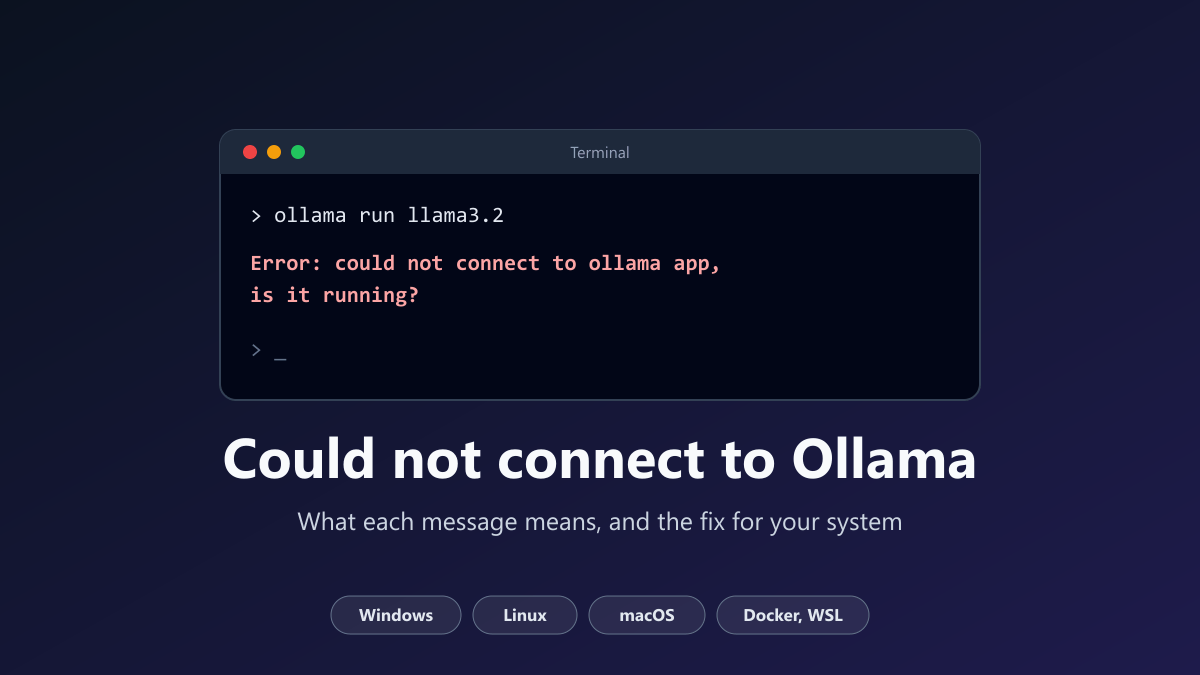
"Could not connect to ollama app, is it running?" is what you see when the ollama command gets no answer from the Ollama server on port 11434 and cannot start that server itself. Open Ollama from the Start menu (Windows) or the Applications folder (macOS). On Linux, start the service with sudo systemctl start ollama. Then repeat your command.
That exact sentence is printed by Ollama 0.7.0 and older. Newer releases describe the same situation with different, more specific lines, and the line you get depends on your operating system. So the first job is to match your message, not to reinstall anything.
I checked the behaviour described here on 17 November 2026 by reading the source code of Ollama 0.40.16, the latest release that day, and of the older releases where the wording changed. If Ollama is new to you, the guide to running AI locally covers installation first.
Find your exact message
| Message | Who prints it | What it means |
|---|---|---|
could not connect to ollama app, is it running? | Ollama 0.7.0 and older, on any system | The server refused the connection and the app could not be started |
ollama server not responding - ... | Ollama 0.7.1 to 0.15.4 | Same situation; the text after the dash is the real cause |
could not connect to ollama server, run 'ollama serve' to start it | Linux, and macOS when the command is not part of Ollama.app | No server is listening and the command cannot start one |
timed out waiting for server to start | Windows and macOS | The app was launched but did not answer within five seconds |
could not locate ollama app | Windows | The file ollama app.exe was not found |
unable to start ollama app | Windows | Windows could not launch the app |
upgrade in progress... | Windows | The installer OllamaSetup.exe is still running |
Warning: could not connect to a running Ollama instance | ollama -v | The version check found no server; your command line tool is fine |
bind: address already in use | ollama serve | A server is already running on that port |
The last row is the opposite problem. It is covered near the end, because people usually meet it right after following the advice in the third row.
What the ollama command checks before it fails
Ollama has two parts. A server loads models and listens on a network port. What you type in the terminal is only a client: ollama sends requests to that server and prints the replies. On Windows and macOS the desktop app runs the server. On Linux it is normally a systemd service.
In Ollama 0.40.16, thirteen commands begin with the same check, among them run, pull, list, ps and show. The command sends a small HEAD request to the server address. That address is http://127.0.0.1:11434/ when OLLAMA_HOST is not set. A running server answers it with the text "Ollama is running".
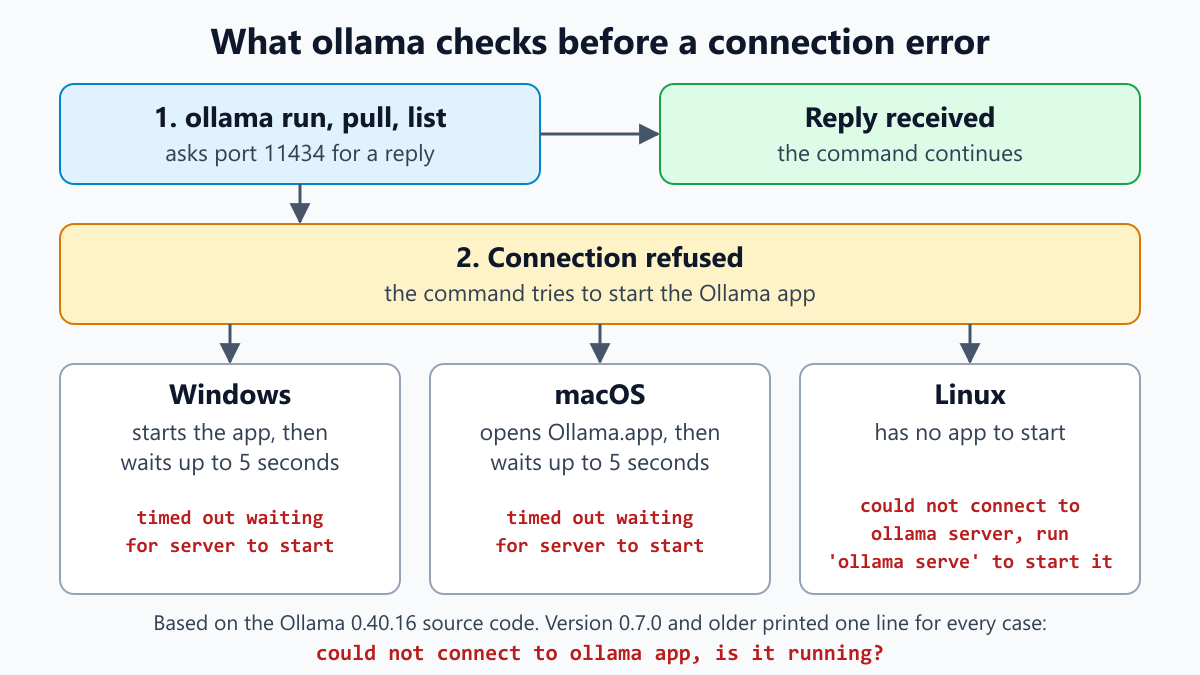
What happens after a failed check depends on the error text, as the command source shows:
- An error that mentions "refused" or "could not connect" tells the command that no server is listening. It then tries to launch the app.
- Any other failure, such as a timeout or an address that cannot be reached, is printed as it is. Nothing gets started.
Starting the app differs per system. On Windows the command launches ollama app.exe in the background. On macOS it opens Ollama.app. Both then repeat the check every half second and give up after five seconds, a limit set in the start-up helper. Linux has no app to launch, so the command stops at once.
Why the wording changed between versions
The same failure has been reported in three ways. This is what a Linux user sees when no server is running:
| Ollama version | Output |
|---|---|
| 0.7.0 and older | Error: could not connect to ollama app, is it running? |
| 0.7.1 to 0.15.4 | Error: ollama server not responding - could not connect to ollama server, run 'ollama serve' to start it |
| 0.15.5 and newer | Error: could not connect to ollama server, run 'ollama serve' to start it |
In version 0.7.0, every failure to start the app was replaced by one fixed sentence. A missing app, a slow start and a Linux machine with no service all looked identical.
Version 0.7.1, the next release, kept the real cause and put "ollama server not responding" in front of it. Version 0.15.5 dropped that prefix.
If you still see the oldest sentence, your Ollama is at least eighteen months old. Run ollama -v to see the version. Updating gives you clearer errors before you fix anything else. The Ollama FAQ describes the update path: the Windows and macOS apps download updates themselves, and on Linux you run the install script again.
First check: is a server answering
Before changing settings, ask the server directly. Open http://localhost:11434 in a browser, or run:
curl http://localhost:11434
The reply "Ollama is running" means a server is up at the default address. In that case the fault is in how your command line reaches it, and the OLLAMA_HOST section below is the one to read.
No reply means nothing is listening. You can confirm that by looking at the port. On Windows, in Command Prompt or PowerShell:
netstat -ano | findstr :11434
On Linux:
ss -ltnp | grep 11434
On macOS:
lsof -i :11434
An empty result means no process owns port 11434. Go to the section for your system.
Fix it on Windows
On Windows the server lives inside the desktop app. Open the Start menu, type Ollama and start it. An Ollama icon appears in the system tray. Then run your command again.
You normally do not have to do this by hand, because the command tries to start the app for you. When that fails, the message tells you where it stopped.
could not locate ollama app. The Windows start code looks for ollama app.exe in three places: the folder that holds ollama.exe, then %LOCALAPPDATA%\Ollama, then your PATH. If you copied only ollama.exe somewhere, or removed the app but kept the command, the search fails. Reinstalling Ollama puts both files back together.
timed out waiting for server to start. The app was launched, but the server did not answer within five seconds. On a slow disk, or right after signing in to Windows, that can simply be too short. Wait a few seconds and run the command again. If it keeps happening, read the log.
upgrade in progress.... The command found OllamaSetup.exe running and refused to start a second copy during an update. Let the installer finish, then try again.
To read the logs, press Win+R and enter explorer %LOCALAPPDATA%\Ollama. The Windows documentation names the files: server.log holds the most recent server log and app.log belongs to the desktop app.
A different error, "ollama is not recognized", has nothing to do with the server. Windows could not find the ollama program itself. The troubleshooting page notes that the installer adds the Ollama folder to your user PATH, so open a new terminal window after installing.
If the server starts but answers slowly, see the checks for Ollama not using the GPU on Windows.
Fix it on Linux
On Linux the command never starts a server by itself. The standard install creates a systemd service, and the Linux documentation gives the commands:
sudo systemctl start ollama
sudo systemctl status ollama
To have it start with the computer, enable it once:
sudo systemctl enable ollama
If the status shows a failed service, the log explains why:
journalctl -u ollama --no-pager --follow --pager-end
Some environments have no systemd, for example a minimal container. There you run the server yourself in one terminal and keep it open:
ollama serve
Then use a second terminal for ollama run and the other commands.
Do not mix the two methods on one machine. The service unit in the documentation runs as a dedicated ollama user, while a manual ollama serve runs as you. Each can end up with its own model folder, so models you pulled under one seem to vanish under the other.
Fix it on macOS
Open Ollama from the Applications folder. Its icon appears in the menu bar and the server starts with it.
The command can open the app for you, but only in one case. The macOS start code checks whether the ollama binary you ran is a symbolic link that points inside Ollama.app. That is how the app installs it. If it is, the app is opened and the command waits up to five seconds.
If the command came from somewhere else, such as a package manager or a downloaded binary, there is no app to open. Since version 0.15.5 you then get the same line as on Linux, and the fix is the same: run ollama serve in a terminal and leave it open. Version 0.15.4 said "could not find ollama app" at this point.
The server log is at ~/.ollama/logs/server.log.
Docker and WSL
In Docker the server runs inside a container, so the first question is whether that container is up. docker ps lists running containers. The Docker documentation starts one like this:
docker run -d -v ollama:/root/.ollama -p 11434:11434 --name ollama ollama/ollama
The -p 11434:11434 part publishes the port to your computer. With it, an ollama command installed on the host can reach the container at the default address. Without it, run the command inside the container instead:
docker exec -it ollama ollama run llama3.2
Container logs come from docker logs followed by the container name. If containers are new to you, start with the Docker beginner guide.
WSL adds a second machine to the picture. Ollama installed on Windows and an ollama command inside WSL are separate installs. Microsoft's WSL networking documentation explains that in the default NAT mode a Linux program must use the IP address of the Windows host to reach a Windows program. In mirrored mode, localhost works in both directions.
The simplest arrangement is to run the server on the same side as the command. Either install Ollama inside WSL and start it there, or use the Windows command from a Windows terminal. The WSL setup guide covers the basics.
OLLAMA_HOST: the setting that sends the command to the wrong place
OLLAMA_HOST is read by both parts. The server uses it to decide where to listen. The command uses it to decide where to connect. People often set it to share Ollama on a network and forget that their own terminal reads it too.
The parsing code fills in missing pieces with defaults, and one of them is easy to miss:
| OLLAMA_HOST value | Where the command connects |
|---|---|
| not set | http://127.0.0.1:11434 |
192.168.1.50 | http://192.168.1.50:11434 |
localhost:8080 | http://localhost:8080 |
0.0.0.0 | http://0.0.0.0:11434 |
http://localhost | http://localhost:80 |
https://ollama.example.com | https://ollama.example.com:443 |
A value without a scheme gets http and port 11434. A value that starts with http:// or https:// and has no port gets the web default, 80 or 443. So http://localhost points the command at port 80, where no Ollama server listens.
The value 0.0.0.0 deserves a note. It is a valid address for a server to listen on, meaning every network interface, and the FAQ uses it for exactly that. As a destination it is a poor choice. A comment in the Ollama source says that connecting to it fails on Windows, yet the command uses the value unchanged.
It does not fail everywhere. On the Windows 11 PC used for this guide (build 26300), a test connection to 0.0.0.0 reached a small listener on 127.0.0.1. Other programs that read the same variable may behave differently, so do not rely on it.
The safe pattern is to give each side its own value. Let the server keep 0.0.0.0, and point your terminal at the loopback address:
$env:OLLAMA_HOST = "127.0.0.1:11434"
ollama list
To see what is set, run echo $env:OLLAMA_HOST in PowerShell or echo $OLLAMA_HOST on Linux and macOS.
Where you change the server's value depends on the system, and the FAQ covers all three. Windows: quit Ollama from the tray, change the variable under your account's environment variables, then launch Ollama again. Linux: run systemctl edit ollama.service, put the line under [Service], reload systemd and restart the service. macOS: use launchctl setenv and restart the app.
When ollama serve says the address is already in use
You followed the hint, ran ollama serve, and got a new error:
Error: listen tcp 127.0.0.1:11434: bind: address already in use
On Windows the ending is different: "Only one usage of each socket address (protocol/network address/port) is normally permitted."
Both mean that something already listens on port 11434. Usually that something is Ollama itself: the Windows tray app, the macOS menu bar app or the systemd service on Linux. Starting another server gains nothing. Leave that terminal and carry on with the server that is already up.
If you see this together with a connection error from ollama run, the two commands are looking at different addresses. Compare OLLAMA_HOST in both terminals.
To restart the server instead of adding one, quit Ollama from the tray or menu bar and open it again. On Linux, run sudo systemctl restart ollama.
When the command works but another app cannot connect
Tools such as Open WebUI, n8n or an editor extension do not use the ollama command. They call the server's HTTP address themselves, so they fail with their own messages, usually "connection refused".
Two facts explain most of these cases. The FAQ states that Ollama binds to 127.0.0.1 by default, so only programs on the same machine can reach it. And inside a Docker container, 127.0.0.1 is the container, not your computer.
An app that runs in a container therefore needs two things. Ollama has to accept connections on more than the loopback address, which is what OLLAMA_HOST=0.0.0.0 does. And the app has to be given the address of the machine where Ollama runs, not localhost.
If you are wiring Ollama into an automation, the n8n beginner guide explains how nodes and credentials fit together. Once the connection works, a missing model is the next thing to check; see where the Ollama models folder lives on Windows.
If it still fails
Collect four things before you search further or ask for help, because every useful answer depends on them:
- The exact message, copied from the terminal.
- The output of
ollama -v. If it shows a client version and a warning, the server is not reachable. - Your operating system, and how Ollama was installed: the desktop app, the Linux install script, Docker or a package manager.
- The value of
OLLAMA_HOSTin the terminal where the command fails, plus the last lines of the server log.
With those in hand, the lookup table at the top of this guide usually narrows the problem to one section.
Frequently Asked Questions
What does "could not connect to ollama app, is it running" mean?
It means no Ollama server replied on port 11434. The command you typed found the connection refused, tried to start the server and failed. That exact sentence comes from Ollama 0.7.0 and older. Newer versions print a more specific message for the same situation. Start the Ollama app or service and run the command again.
How do I start the Ollama server?
Open Ollama from the Start menu on Windows or from the Applications folder on macOS. With the standard Linux install, run sudo systemctl start ollama. Without systemd, run ollama serve in a terminal and keep that window open. To confirm it worked, open localhost on port 11434 in a browser and look for the text Ollama is running.
Why does ollama serve report that the address is already in use?
Because a server is already listening on port 11434. It is usually Ollama itself, started by the Windows tray app, the macOS menu bar app or the systemd service on Linux. A second server is not needed, so close the window where you ran ollama serve and keep using the one that is running. On Windows the same error ends with a sentence about only one usage of each socket address.
Why do I get timed out waiting for server to start?
The ollama command launched the desktop app and then checked every half second for a reply. After five seconds without one it gave up. The app may simply need longer, for example right after you sign in or on a slow disk. Wait a moment and run the command again. If the message returns each time, read the server log to see why the server is not starting.
Do I need to keep a terminal open for Ollama?
Only when you started the server yourself with ollama serve. In that case the server stops when you close the window. The Windows and macOS apps and the Linux service run in the background, so no terminal is needed. That is why the service or the app is the better choice for daily use.
Why can another app not reach Ollama when the ollama command works?
The command and the app connect in different ways. Unless you change it, Ollama is bound to 127.0.0.1, an address that other machines and Docker containers cannot reach. Inside a container, that address is the container. Set Ollama to accept connections from outside the loopback address, then give the app the address of the computer that runs Ollama. Both steps are needed.
Verification Notes
The messages, the lookup order on Windows, the five second wait and the OLLAMA_HOST defaults come from the Ollama source code at release 0.40.16, the latest on 17 November 2026. The version history comes from comparing that code with releases 0.7.0, 0.7.1, 0.15.4 and 0.15.5, the releases on each side of the two wording changes. Release dates are the ones published on GitHub.
Two things were tested on a real Windows 11 PC (build 26300): the wording of the Windows socket errors, and whether a connection to 0.0.0.0 reaches a listener on 127.0.0.1. The netstat command was run there as well.
Ollama itself was not installed or run for this guide, so there are no screenshots. The Linux, macOS and Docker commands were not executed. The Ollama commands among them come from the official documentation, while ss and lsof are standard system tools. The OLLAMA_HOST table follows from reading the parsing code, not from running it.
Check the result on your own machine, especially if your version is older than 0.15.5.
Sources and Further Reading
- Ollama documentation: FAQ, including updates, server settings and the default bind address.
- Ollama documentation: Troubleshooting, with log locations for each system.
- Ollama documentation: Linux, Docker and Windows.
- Ollama 0.40.16 source: command checks in cmd.go.
- Ollama 0.40.16 source: Windows start code, macOS start code and the five second wait.
- Ollama 0.40.16 source: OLLAMA_HOST parsing.
- Ollama 0.7.0 source: the original message.
- Microsoft Learn: Accessing network applications with WSL.
Share this article
Written by
Ali RehmanAuthor at ByteVerse
A Full Stack Developer and Tech Writer specializing in React.js, Next.js, and modern JavaScript, sharing insights on web development, frontend technologies, backend APIs, and scalable applications.
View all posts