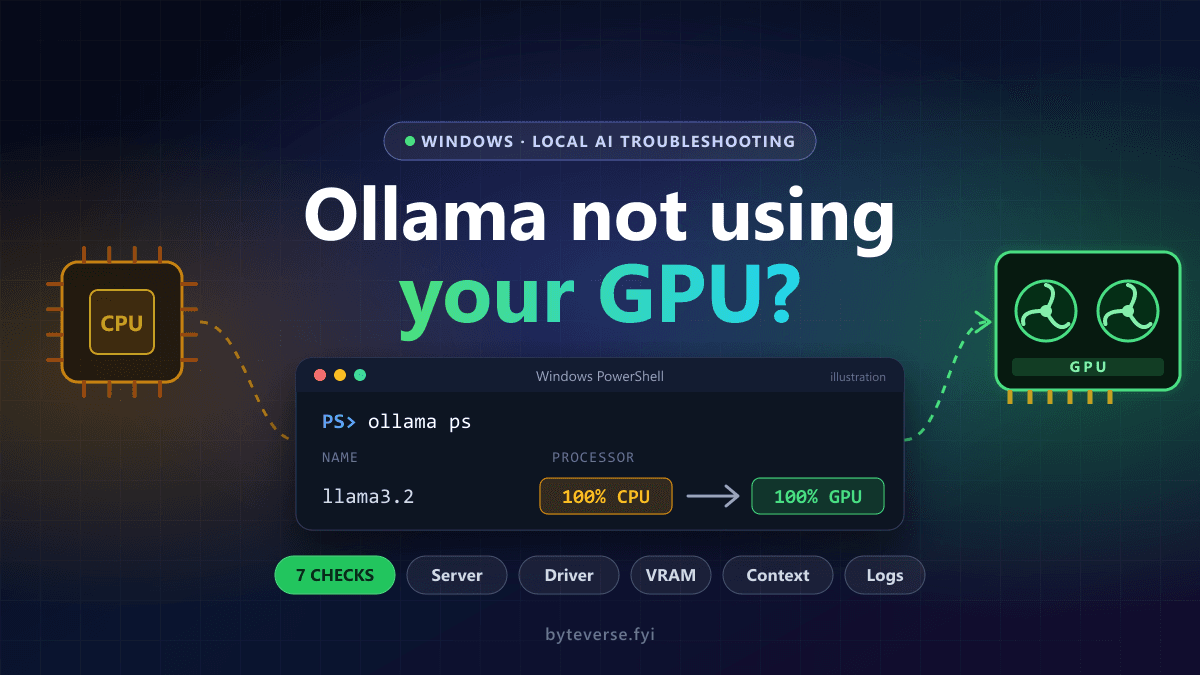
Ollama Not Using GPU on Windows? 7 Checks Before Reinstalling
Ollama stuck on CPU? Start with the running model and server, separate memory placement from utilization, then check Windows GPU support, drivers, VRAM, context and logs without blindly reinstalling.
- 1The PROCESSOR column in ollama ps describes model memory placement, not live GPU utilization.
- 2Full CPU placement and a CPU/GPU split require different checks; confirm the server, supported drivers, available VRAM and context.
- 3Native Windows, WSL, containers and remote models are separate environments; keep changes scoped and use redacted server logs.
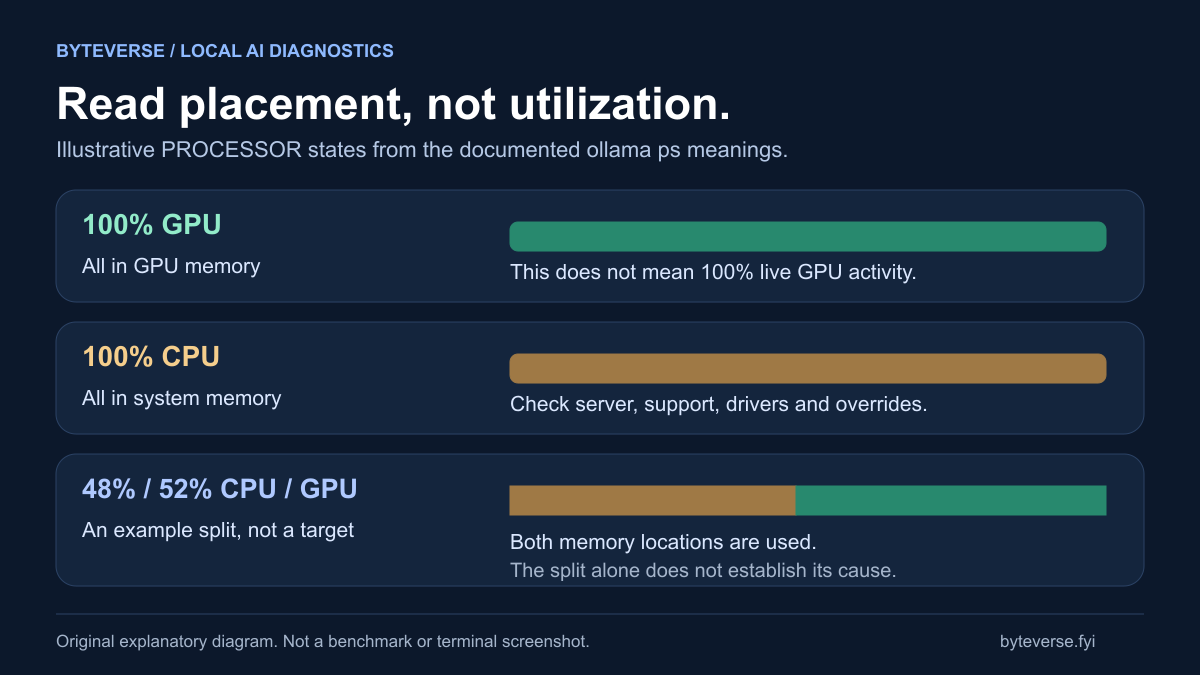
If Ollama is not using your GPU on Windows, start with ollama ps while a local model is loaded. Its PROCESSOR column separates three different situations: the model is entirely in GPU memory, entirely in system memory, or split between them. Those percentages describe memory placement, not live GPU utilization. A quiet Task Manager graph alone is not evidence that Ollama has fallen back to the CPU.
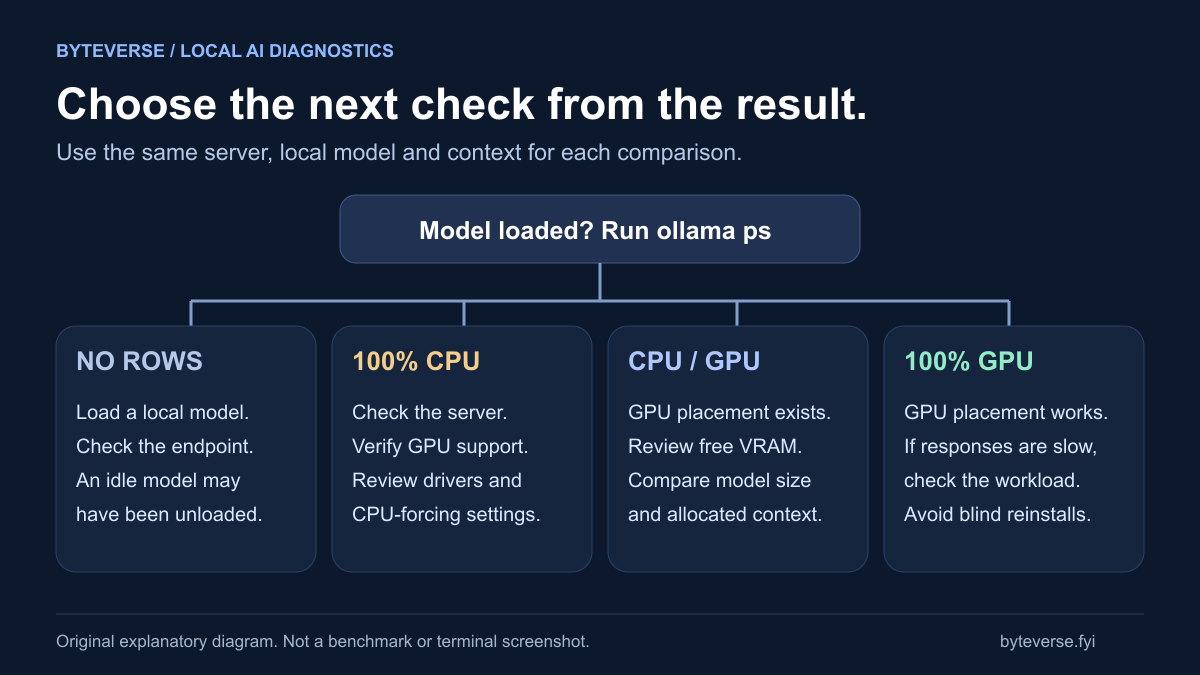
The useful fix depends on that first result. Full CPU placement calls for checking the actual server, supported hardware, drivers and overrides. A CPU/GPU split calls for a memory check before a reinstall. An empty list calls for loading a local model first.
Scope: this is a documentation-based guide for the native Windows Ollama application, checked on October 6, 2026. CLI command names were checked against installed help; the GPU cases and diagrams are explanatory, not hardware benchmarks. No NVIDIA/AMD comparison or successful driver repair is claimed. WSL, containers and remote servers have separate boundaries below.
First, identify the symptom
Open PowerShell and run:
ollama ps
Read the row for the model you are actually using. The official Ollama FAQ defines the PROCESSOR values as follows:
| What you see | What it establishes | Useful next step |
|---|---|---|
100% GPU | The model is loaded entirely in GPU memory | Investigate workload, model and context if responses are slow; do not assume CPU fallback |
100% CPU | The model is loaded entirely in system memory | Check server location, GPU support, drivers and CPU-forcing settings |
A split such as 48%/52% CPU/GPU | Some of the model is on each side | Check available VRAM and allocated context before changing drivers |
| No model rows | No model is currently reported as loaded by this server | Send a short request to an installed local model and check again |
| A connection error | The client could not reach its server | Resolve the server/address problem before diagnosing GPU placement |
Models are normally unloaded after an idle period; the FAQ documents five minutes as the default, configurable with keep-alive settings. A model appearing in ollama list only establishes that it is available on the server. It does not mean it is loaded now.
1. Make sure you are checking the right Ollama server
The CLI, desktop chat window and third-party front end do not necessarily point to the same place. A browser UI might be using Ollama in a container, a different computer, or a cloud-hosted model while your terminal is checking native Windows.
Confirm three things before making changes: the exact model name, where inference is running, and which server your client uses. A cloud model is not a test of your local GPU. If you are still choosing between native tools, the local AI setup guide covers that decision; this article assumes you already have Ollama installed.
These commands show the CLI selected by PowerShell, the version it reports, and models visible through its configured server:
Get-Command ollama | Select-Object Source
ollama --version
ollama list
If your client reports a client/server version mismatch, record both rather than treating an updated executable as proof that the running server was updated. Review OLLAMA_HOST if you deliberately configured a custom address, and compare the endpoint in your front end's settings. Do not change it to 0.0.0.0 to solve a GPU problem: that changes network exposure, not hardware support.
For the standard native setup, the documented server listens on localhost port 11434. This read-only PowerShell request checks that local server explicitly:
(Invoke-RestMethod -Uri 'http://127.0.0.1:11434/api/ps' -TimeoutSec 10).models |
  Select-Object name, size, size_vram, context_length
The running-model API reference defines size_vram in bytes and context_length for the loaded model. Neither is a live utilization reading. An empty result here, alongside activity in a remote UI, is a reason to verify endpoints—not to install more drivers on the wrong machine. If you intentionally use a custom local port, use that approved address instead.
2. Check the Windows hardware and driver requirements
Ollama's automatic GPU selection only helps when the hardware and backend are supported. Start with the current Windows requirements and the platform-specific hardware support page. The native application does not require WSL merely to use a supported GPU.
NVIDIA: distinguish detection from successful inference
For an NVIDIA system, these are useful read-only checks:
nvidia-smi
nvidia-smi -L
If the utility runs and lists the intended card, Windows can communicate with that NVIDIA driver. This does not yet prove that Ollama detected the same device, has enough VRAM, or loaded the model there. If the command is not found, check the installed driver and utility path; that message alone does not prove there is no NVIDIA GPU.
As checked for this guide, the Windows page specifies NVIDIA driver 551.61 or newer. The hardware page specifies compute capability 5.0 or newer, with an important exception: compute capability 5.0 through 6.2 requires driver 570 or newer. Do not reduce those requirements to “any CUDA card” or “550 works for everything.” Match your exact card to the current supported-device information.
Use the laptop manufacturer or GPU vendor's supported driver path. If a driver installation requires a reboot, finish it before retesting. An update can change the situation, but it is not a guaranteed repair for unsupported hardware.
A separate CUDA Toolkit installation is not a universal prerequisite for the normal Windows Ollama installer. Do not add development toolchains, unofficial DLL packs or random driver bundles just because an old forum answer mentions CUDA. First identify the actual missing component or backend error in Ollama's log.
AMD: use the Windows table, not the Linux one
Current documentation distinguishes ROCm v7 / HIP7-capable Windows drivers from Vulkan acceleration. A card appearing in the Linux ROCm table does not establish Windows ROCm support.
The Windows page specifically notes that some RDNA2/Radeon RX 6000 systems, including RX 6800-class cards, may not expose ROCm 7 through current Windows drivers. It recommends Vulkan as the fallback for those systems. The hardware documentation says Vulkan is enabled by default when the backend is installed. Older advice that every user must enable an experimental Vulkan switch may not describe your current release.
That is not a promise that every Radeon or integrated GPU works. Check the exact device, driver, installed backend and server log. On a mixed integrated/discrete system, only select a Vulkan device index after establishing which index belongs to the discrete card. Copying someone else's GGML_VK_VISIBLE_DEVICES=1 can select the wrong device on yours.
3. Separate a VRAM limit from a detection failure
A CPU/GPU split means GPU placement is already happening. The next step is to investigate why part of the model remains in system memory, starting with available VRAM and context allocation. Placement alone does not prove the cause.
Available VRAM can be smaller than the card's advertised capacity. Other applications, another loaded model, the selected model's memory needs and its context allocation all matter. The model's download size is not a complete runtime-memory budget.
Try a controlled comparison on a personal, idle setup:
- Finish active work and close GPU-heavy applications you do not need for the test.
- Check
ollama psfor other loaded models. Unload only a model you know is unused; do not disrupt a shared service or someone else's request. - Test a smaller already installed local model with a short, non-sensitive prompt.
- Keep the context modest for the comparison, then inspect PROCESSOR and CONTEXT again.
The commands below use example-model:tag as a placeholder. Replace it with an exact local model tag from your own list; do not run the placeholder literally. Running a tag that is not installed can trigger a model download. Stopping a model unloads it; it is different from removing its downloaded files.
ollama stop example-model:tag
ollama run example-model:tag "Reply with one short sentence."
ollama ps
If the smaller model loads fully on GPU but the larger one still splits, that is evidence that the GPU path works for at least one workload. It does not establish a universal safe model size, a tokens-per-second target, or that the larger model must also fit.
Check the actual context instead of assuming a default
Larger context allocations require more memory. The dedicated context-length guide documents a settings slider in the application and a CONTEXT column in ollama ps for inspecting the running allocation.
The official pages currently disagree about defaults: the FAQ says 4,096 tokens, while the dedicated context page describes VRAM-dependent defaults. That is why this guide does not assume every installation starts at 4k. Check your running allocation and your app's settings.
For a CLI comparison, the documented interactive command is:
/set parameter num_ctx 4096
Enter that inside an interactive ollama run session, not at the PowerShell prompt. Send another short prompt and recheck placement. If your front end supplies its own context setting, change the relevant setting there instead. Lower context is a diagnostic comparison, not a claim that 4,096 tokens is sufficient for every coding or document task.
Do not make five memory changes together. Change one factor, record the result, and restore settings that did not help. A smaller context cannot make an unsupported card or missing driver supported.
4. Look for settings that deliberately exclude the GPU
Environment variables copied from earlier experiments can be easy to forget. In Edit environment variables for your account, review only the settings relevant to Ollama and note their existing values before changing anything.
For NVIDIA, the hardware docs describe CUDA_VISIBLE_DEVICES=-1 as a way to force CPU usage. A value selecting an unavailable device can also leave no intended device visible. For Vulkan, the documentation describes OLLAMA_VULKAN=0 or GGML_VK_VISIBLE_DEVICES=-1 as ways to disable that backend or its devices.
The troubleshooting page also describes an experimental OLLAMA_LLM_LIBRARY override. A CPU library override such as cpu_avx2, if supported by the installed release, bypasses normal automatic selection. Library names vary: copying an old cuda_v11 name is not a reliable way to repair a newer installation.
These controls are backend-specific. A NVIDIA visibility variable is not a universal AMD/Vulkan setting. Remove only a stale override you understand, or ask the administrator who configured it. Do not clear all user/system variables, and do not share a full environment dump publicly—it may contain unrelated credentials.
After changing user variables, fully quit and relaunch the actual Ollama server process. Editing a variable in a new client terminal does not retroactively change the environment of the tray application's already-running server.
5. Restart the native app once, not a second server
The Windows installer normally runs Ollama in the background. Closing its chat window is not necessarily the same as quitting it. Use the tray menu to quit, then start Ollama from the Windows Start menu and repeat the same local-model test.
Do not launch ollama serve alongside a tray instance already occupying the same port. A bind/address-in-use error is a duplicate-server problem, not proof of a GPU fault. Likewise, if a third-party service manager owns the server, relaunching a separate desktop app may test a different process entirely.
If the problem began after an Ollama update, record the version, exact model and driver before changing anything else. Apply any pending “Restart to update” action, then test again. Keep logs from the failed run so a temporary improvement after a restart does not erase the only evidence.
If it began after sleep, retest after a controlled app restart. Ollama documents an NVIDIA suspend/resume issue and driver-module workaround specifically for Linux. Those Linux module commands are not Windows PowerShell fixes; do not transplant them into a native Windows checklist.
6. Read the server log before reinstalling
For a default native Windows installation, the troubleshooting documentation points to the latest server log under your local application-data directory. This bounded read shows the most recent 120 lines:
Get-Content -LiteralPath "$env:LOCALAPPDATA\Ollama\server.log" -Tail 120
Run it after reproducing the issue and compare timestamps. Look for the selected backend, GPU discovery, available memory, model loading and any later fallback/error message. Exact log wording changes between releases, so absence of one phrase copied from a tutorial is not a diagnosis.
If the file is missing, verify the user account and how the server was launched. A manually launched process may log to its terminal; a container has its own logs. Do not conclude “the GPU is broken” from a missing native log file.
Additional debug logging is optional. It changes how much diagnostic information is recorded, so enable it only for a brief reproduction. First quit the native tray app. Then, from its default install directory, the documented app-launch pattern can be written in PowerShell as:
$env:OLLAMA_DEBUG = '1'
& "$env:LOCALAPPDATA\Programs\Ollama\ollama app.exe"
Use the actual installed path if you selected a custom location. After collecting the relevant lines, quit that diagnostic app and close the diagnostic shell; relaunch normally from Start. A process-only variable set in that shell is not a permanent user-variable change. If you also set a persistent debug variable elsewhere, remove that specific setting when finished.
Review logs before sharing. Remove prompts, private file paths, hostnames, tokens and unrelated information. Send a short time-bounded excerpt with versions and the exact error, not your entire model folder or account configuration.
7. Keep WSL, Docker and remote inference separate
For native Windows, use the checks above. For Ollama inside WSL or a container, GPU access must work inside that environment. A successful NVIDIA check on the Windows host alone does not prove container passthrough or Linux backend access.
The official Ollama Docker guide covers its runtime setup. Our Windows and WSL setup guide explains the host/subsystem distinction, and the Docker getting-started guide explains why a container is a separate runtime. Use the guide for the setup you actually run instead of installing every stack at once.
Do not edit Docker daemon settings, disable security controls, or change system-wide GPU permissions as a first response to a native Windows symptom. Those are administrator-level changes with different consequences.
On a Mac, native Apple GPU acceleration uses Metal. The Ollama FAQ separately says GPU acceleration is unavailable through Docker Desktop on macOS. Neither statement is a reason to install NVIDIA CUDA tools on a Mac. For remote inference, troubleshoot the remote server's GPU and environment, not the client laptop's graphics panel.
What a useful final result looks like
Retest the same model, server, context and short prompt after each relevant change. Record PROCESSOR placement, the model's allocated context, whether responses actually succeed, and the time of the server-log excerpt.
If you have 100% GPU and responses work, GPU placement is confirmed even if a utilization graph looks quiet. If you have a stable CPU/GPU split, decide whether a smaller model or lower context is acceptable. Full GPU placement may not be possible for the workload on that hardware.
If a supported card remains undetected, a useful issue report contains your OS, GPU model, driver and Ollama versions, native/WSL/container location, exact model tag, PROCESSOR result, reproduction steps and a redacted log excerpt. Those facts are more actionable than “GPU at zero percent.”
Frequently Asked Questions
How can I tell whether Ollama is using my GPU?
Run ollama ps while a local model is loaded. Its PROCESSOR column describes memory placement: GPU, CPU or a mixture. GPU placement does not mean the device is continuously at full utilization. Confirm that the command checks the same server and model as your chat application.
Does a CPU and GPU split mean Ollama is broken?
Not necessarily. It means the model is partly loaded on each side. Available VRAM and context allocation can affect placement. Compare a smaller installed model and a modest context before assuming driver detection failed. Full GPU placement is not guaranteed for every workload.
Do I need WSL or the CUDA Toolkit for native Windows Ollama?
WSL is not a native Windows prerequisite. Supported hardware and drivers are required, but a separate CUDA development toolkit is not a universal fix for the normal installer. WSL and containers have their own GPU access requirements; troubleshoot the environment where your server runs.
Why might Ollama not use an AMD GPU on Windows?
Windows ROCm support is different from Linux support and depends on the card and driver. Current documentation recommends Vulkan fallback for some Radeon RX 6000 systems. Check the Windows hardware information, installed backend and server log rather than copying a Linux override or assuming every Radeon card is supported.
Should I force GPU use with a large layer setting?
Not as a universal first fix. A setting cannot create more VRAM, install a missing backend or make unsupported hardware compatible. Establish server location, supported drivers, current placement and memory needs first. Use only options documented for the installed release and workload.
Sources and Image Credits
Primary documentation checked October 6, 2026:
- Ollama FAQ: processor placement, server configuration, updates and model unloading.
- Ollama Windows: requirements, default paths and backend notes.
- Ollama hardware support: NVIDIA, AMD, Metal and Vulkan.
- Ollama context length: allocated context and memory requirements.
- Ollama troubleshooting: logs, discovery and experimental library overrides.
- Ollama CLI reference.
- Ollama running-model API reference.
- Ollama container setup.
The cover and two diagrams are ByteVerse original illustrations. They explain diagnostic choices and memory placement; they are not screenshots, measured hardware results or a claim of endorsement by Ollama, NVIDIA, AMD or Microsoft.
Share this article
Written by
Ali RehmanAuthor at ByteVerse
A Full Stack Developer and Tech Writer specializing in React.js, Next.js, and modern JavaScript, sharing insights on web development, frontend technologies, backend APIs, and scalable applications.
View all posts